
Add a user
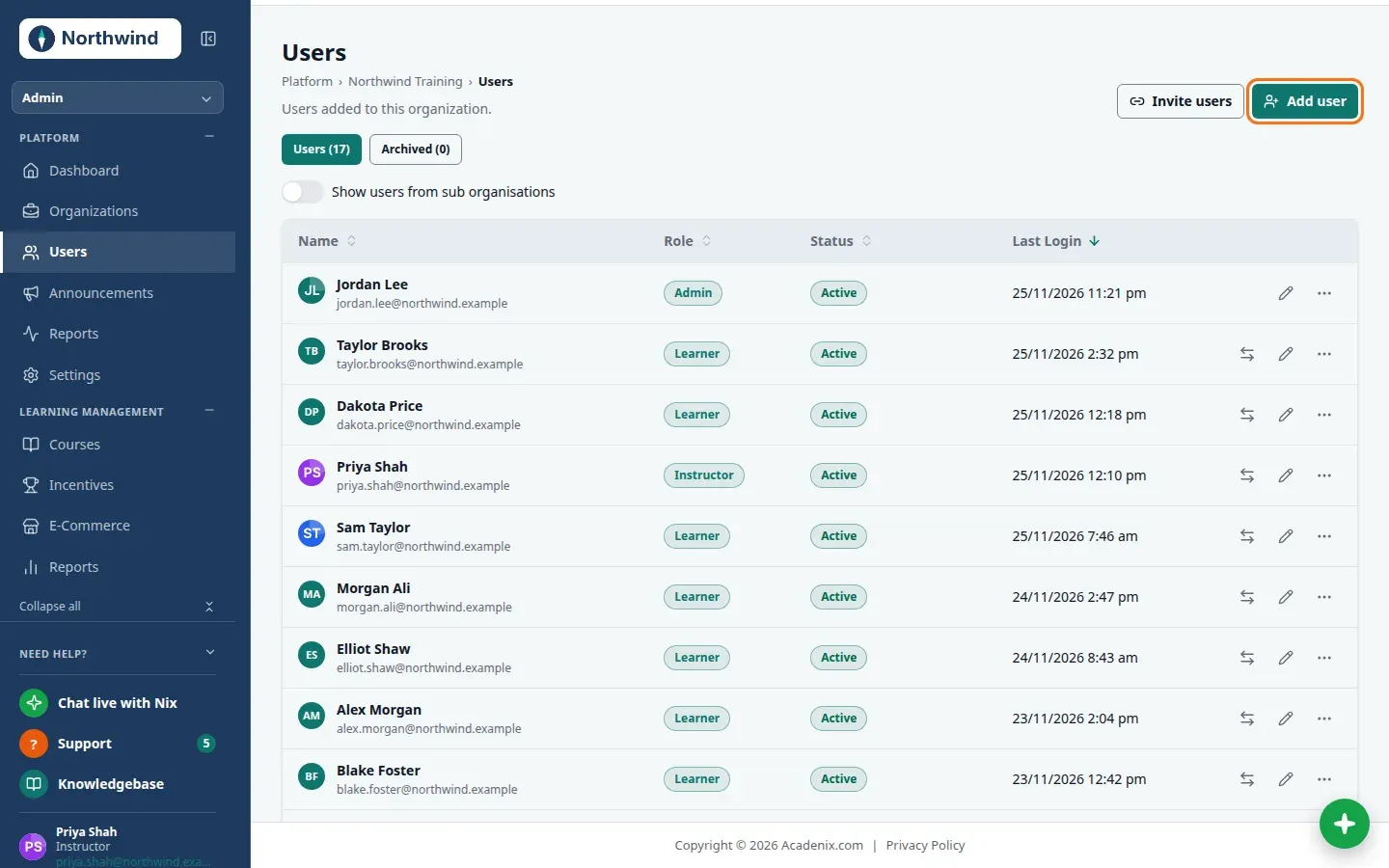
You can add someone to your organization, or to an organization beneath it, from the Users page.
Steps
-
In the sidebar, choose Users.
-
Choose Add user at the top right. The New user slide-out opens.
-
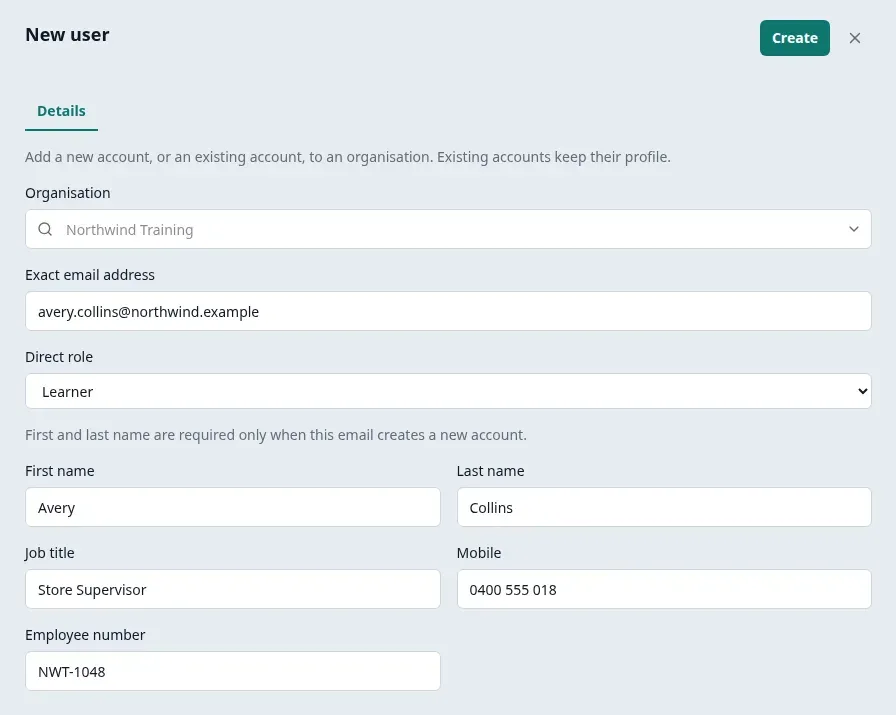
If your organization has organizations beneath it, choose where the person belongs under Organisation. It starts on the organization you are in.
-
Enter their Exact email address.
-
Choose their Direct role: Learner (the default), Instructor or Admin. An instructor looks after learners and courses without Settings, Organizations or E-Commerce (see What an instructor can do). Working as an instructor yourself, you add learners only.
-
If this email is new to Acadenix, enter their First name and Last name. Job title, Mobile and Employee number are optional. The employee number is what your own HR system calls them; no two people in one organization can share it.
-
Choose Create.
Good to know
- Someone who already has an account keeps their name and details, and gains the role you chose. You can only add an existing account that already belongs to your organization or one beneath it; any other is refused with “This address can’t be added here.”
- Nobody is enrolled in a course when you add them. Enrol them from the course, or from their slide-out on Users (see Enrol learners in a course).
- There is no password. People sign in with a one-time code sent to their email, or with a sign-in method your organization turns on.
- If your organization sends the User created email, a new person is told their account exists and where to sign in. Someone who already had an account isn’t sent it.
- You can’t add someone who is already in this organization or whose account is inactive, or to an organization that is archived or inactive. The message on screen says which.
- With invite links switched off, you can only create accounts on your organization’s email registration domains (see Invite links and registration).
- To let people join by themselves, use Invite users next to Add user, when your organization has invite links turned on.
- Everyone you add, a new account or an existing one, goes into the audiences ticked Assign on registration.
- If the person couldn’t get a sign-in code here, because Email OTP is switched off or accepts only other email domains, they are still added and a note above the list says so. The sign-in page itself never tells anyone a code wasn’t sent, so a refused code is also listed in the Activity report as Sign-in code refused.
If this didn’t help
Ask Nix to log a support ticket, or open Support under Need help?.
Copyright © 2026 Acadenix.com