
Add and manage units in the Units Library
The Units Library holds the units your courses are built from. One unit can be in several courses.
Steps
-
In the sidebar, choose Courses, then the Units tab.
-
Choose Create Course Unit.
-
Enter the Unit Name. Leave Unit Code empty to get your organization’s next code, or type your own.
-
Choose the Unit Type:
- SCORM 1.2 or SCORM 2004: a zip with an imsmanifest.xml, up to 100 MB. The package records its own completion.
- Web package (HTML5): a zip of web content without a SCORM manifest, up to 100 MB. If it has no usual start page, such as index.html, at its root, give its Launch page.
- PDF: a document up to 20 MB.
- Video: an MP4 up to 1 GB, with H.264 video and AAC audio, which plays in every browser. Any video editor or screen recorder can export it. Learners can only mark it complete once they’ve watched 90% of it. Skipping ahead doesn’t count.
- Instruction: a page you write in the editor.
Learners mark web package, PDF, video and Instruction units complete themselves.
-
Choose its Category, one of your course categories, or leave it Uncategorised, and, if you like, the Language it’s in.
-
Upload the file or write the content. If you have a Transcript of what the unit says, paste it in: learners can download it. Approximate time is how long a learner takes, in minutes, optional: it adds up into each course’s duration. A unit made with Nix fills it in itself.
-
Choose Create.
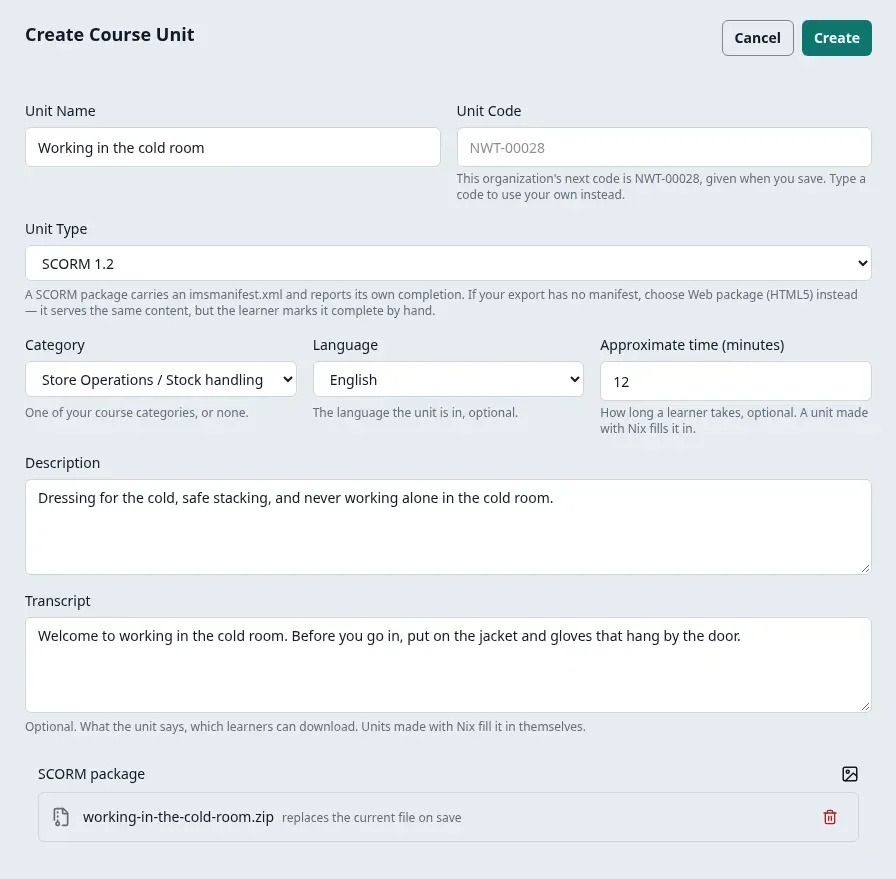
A package is processed in the background: refresh after a few minutes until its Type shows Ready.
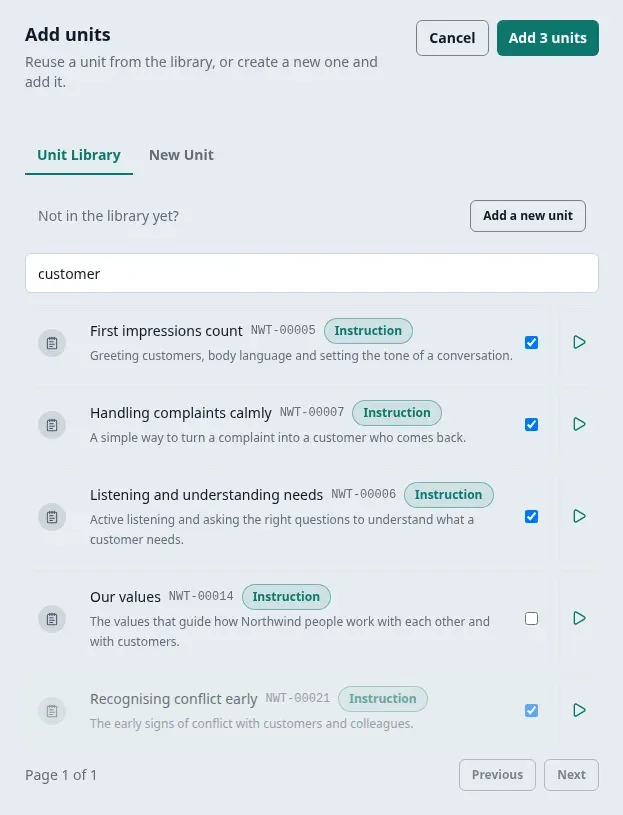
To put units in a course, open the course and, on Units, choose Add units from the library. Tick them on the Unit Library tab and choose Add N units, or create one on New Unit with Create and add. Then choose Update.
To have Nix design a unit with you instead, choose Create with Nix: see Make a unit with Nix.
Captions for a video
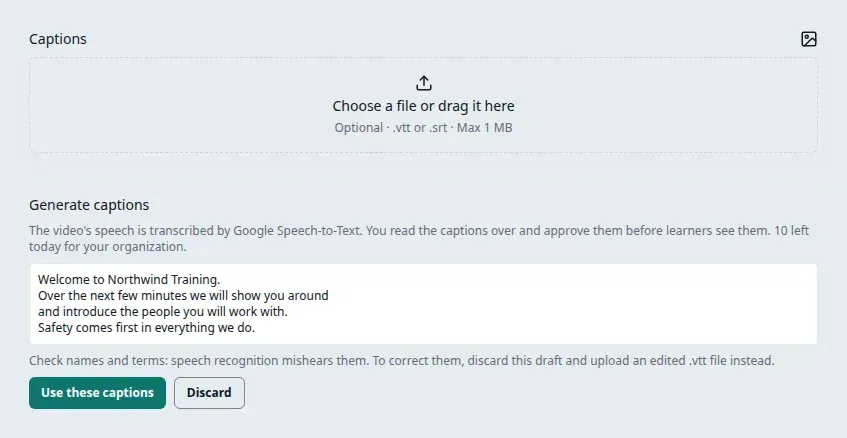
A video can have one captions file, which learners turn on with the player’s captions button.
- Upload a .vtt or .srt file under Captions on the unit.
- Or generate them: once a video unit is saved and has no captions, choose Generate captions. The speech is transcribed in the background, which takes a few minutes for a long video. Read the draft over, then choose Use these captions, or Discard. Learners never see a draft. Speech recognition can mishear names and terms; to fix them, upload an edited .vtt file instead. Your organization can generate captions 10 times a day.
- Adding, changing or removing captions makes a new version of the unit.
- Create with AI reads a video’s captions when it writes test questions.
A YouTube or Vimeo video can’t be pulled in directly. If it’s yours, download it from YouTube Studio or Vimeo and upload the MP4.
Find units by category
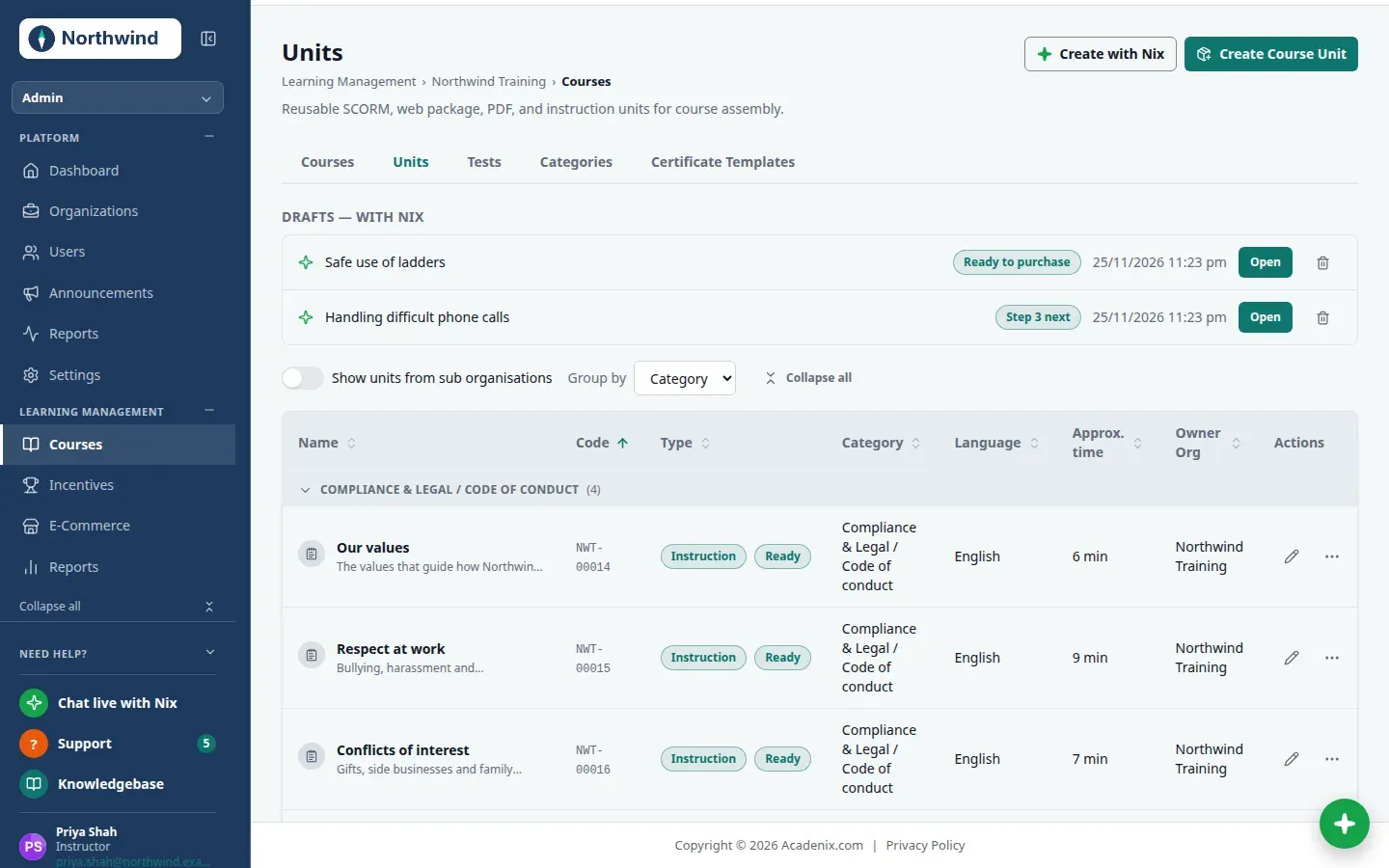
Each unit has one category, or none. The Category column shows it, and the Category filter shows one category’s units, or the uncategorised ones. Set Group by to Category to list units under a heading per category: choose a heading to fold its units away, or Collapse all.
Find units by language
The Language column shows the language a unit is in, where it’s given. Units made with Nix show their region too, such as English (Australia). The Language filter shows one language’s units, whatever their region.
Good to know
- Preview, in a unit’s … menu, shows it as a learner sees it. Nothing you do there is recorded.
- Select a unit to see its Details, the Courses using it, its Versions and its Users.
- A new file, new text or a new type makes a new version; name and description changes don’t. If learners are part way through, choose Restart them on the new version or Let them finish the version they started. Activate on Versions brings back an earlier version.
- Learners who already finished keep their completion and certificate. The unit shows them Updated, so they can look at it again if they wish.
- Removing a unit from a course, in the course editor, may ask about courses beneath yours that reuse it: choose Let those courses keep this unit or Remove this unit from those courses now.
- Delete removes the unit and all its versions for good. It is refused while any course uses it, listing them; remove it from those first.
- Units marked From another organization come with a course you receive. You can preview them and add them to your own courses, but not change them or download their file: the uploaded package or PDF stays with the organization that owns the unit.
- Units made with Nix carry the same unit in five formats under Downloads, a row each with a Download button, on the unit’s Details tab and on its edit form: SCORM 1.2, SCORM 2004, a web package, xAPI (Tin Can) and cmi5, for use in another LMS, and as a PowerPoint, one editable slide per slide with the narration in the notes and on the slide, to take the unit on in PowerPoint or an authoring tool. The row Acadenix plays, chosen at purchase, is marked; the three the player can show have Preview. Nothing removes a download. The packages are for global administrators; others get the PowerPoint. Nix fills in their Transcript.
- Content is for viewing, not copying, for learners: right-click, selecting, dragging and the save, print and view-source shortcuts are switched off over course content, inside SCORM and web packages too, and PDFs show without a download button, in the preview as well. A link to the content copied out of a course or preview stops working soon after the page is closed or its person signs out.
- Adding and changing units, and building courses, needs a plan of your organization’s own: Bronze, Silver or Gold. Without one, Create Course Unit says what upgrading would take, and the units your organization already owns stay as they are.
If this didn’t help
Ask Nix to log a support ticket, or open Support under Need help?.
Copyright © 2026 Acadenix.com