
Copy your learning history from another organization
If you used to have an account in another organization of your group, you can ask for a copy of your completions, SCORM history and certificates on your current account. Nothing is removed from the other organization.
Steps
-
Open the menu under your name at the foot of the sidebar and choose Migrate profile.
-
Under Learning history from another organization, choose Copy My Learning History From Another Organization.
-
Read how it works and choose Next.
-
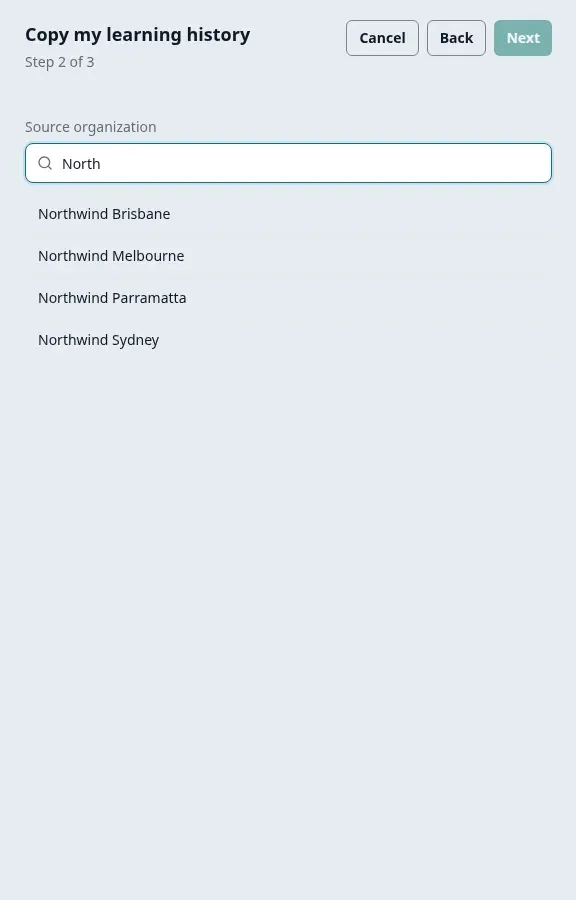
In Source organization, type at least four letters of its name, choose it from the matches and choose Next.
-
Enter the Email address of your account there, exactly, and choose Send request.
What happens next
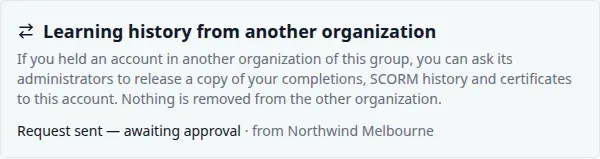
That organization’s administrators are asked to approve it. The same place on your profile shows how it’s going: Request sent — awaiting approval, Copying…, then Completed with the number of records copied. It may instead say Not approved, or Expired if nobody decides within 7 days. You get an email when your copy is ready.
Good to know
- Copied records appear on Achievements under Copied history, and copied certificates are marked Copied from the other organization.
- A course you hadn’t finished carries on here if your organization offers it and you aren’t already enrolled in it.
- You can have one request open at a time. Once it’s decided you can send another, for example to pick up anything newer.
- You won’t be told whether the email address matches an account: the administrators there decide.
If this didn’t help
Ask Nix to log a support ticket, or open Support under Need help?.
Copyright © 2026 Acadenix.com