
Send email from your own mail server
By default your organization’s emails come from the organization above yours, or from Acadenix’s own mailer. You can send them through your own mail server and sender address instead.
Steps
-
In the sidebar, choose Settings, then the Mail tab.
-
Choose Override for this organization.
-
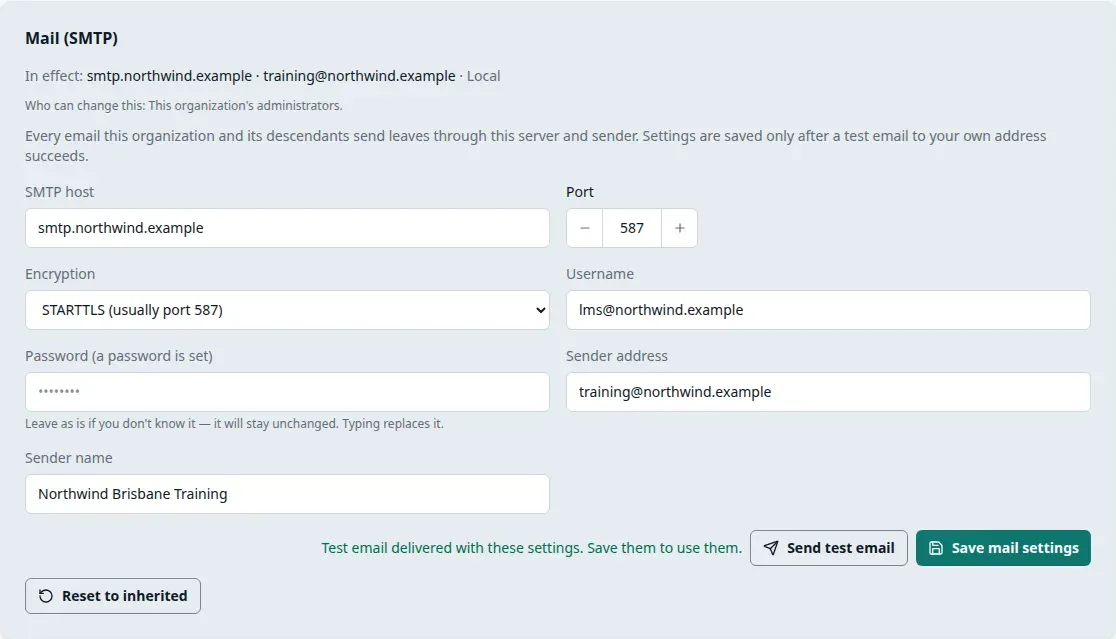
Enter the SMTP host, Port, Encryption, and the Username and Password if your server needs them, then the Sender address and Sender name.
-
Choose Send test email. It goes to your own email address.
-
When it says Test email delivered with these settings, choose Save mail settings. It then says Saved. Mail now goes through your server, and In effect shows it.
Good to know
- Settings are saved only after a test succeeds with exactly those settings. Change any field after the test and you must test again.
- The organizations beneath yours use it too, unless they set their own. The page says how many would be affected.
- To go back to the organization above yours, choose Reset to inherited.
- The password is never shown again after saving. Leave it as it is to keep it; typing replaces it.
- Encryption: TLS is usually port 465, STARTTLS usually port 587.
- In effect at the top says where your mail settings come from: Local for your own server, Inherited from the organization directly above yours (or an organization above, when it was set higher up), or Acadenix default. An inherited server’s details are never shown.
- Which emails are sent, and their wording, is covered in “Email templates and email history”.
If this didn’t help
Ask Nix to log a support ticket, or open Support under Need help?.
Copyright © 2026 Acadenix.com