
Training credit for your organization
Training credit is prepaid money, in US dollars, that pays for courses with a price. In the sidebar under Learning Management, choose E-Commerce. Its tabs are Learner Requests, Ledger, Sales and, last, Training Credit Settings, where your organization’s credit is: from there you give it to learners, who spend it when they enrol themselves. Enrolments you make are paid from it directly.
E-Commerce in the sidebar is where training credit lives, for every organization: Learner Requests, Ledger and Training Credit Settings. Its Sales tab appears only when your organization sells: it holds its own Silver or Gold licence and has connected its own Stripe account (and the organization above hasn’t switched it off).
Courses your organization makes free for organizations below it are paid from this credit too, at your buy price for each of their learners. Your administrators are emailed once when a spend takes it below your Low balance warning level (USD 100 unless you change it on the tab), and once when it reaches zero; while it is low, the tab says so.
What your organization made on each course sale is on the Sales tab (see See your course sales).
Every movement of the credit is on the Ledger tab, newest first: what happened, whose balance it moved, any reference, the amount and the balance after. Credit Acadenix added against an invoice also shows Paid or Unpaid, as Acadenix recorded it. Filter it by Where, Learner, What or Reference, and sort it by when or by amount.
Get credit
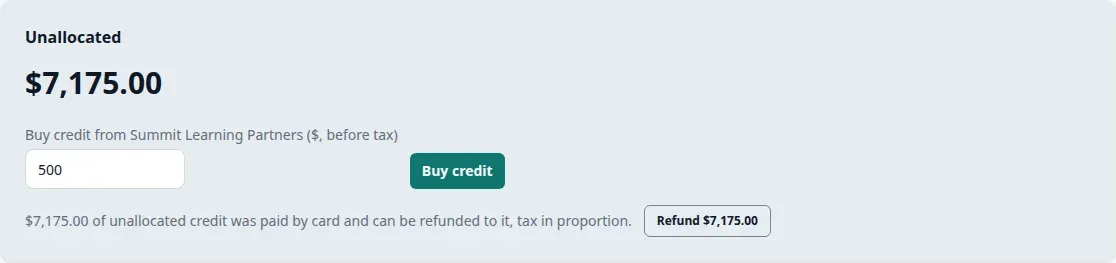
- Buy it. Under Unallocated, enter an amount in Buy credit from your seller (at least $5, before tax) and choose Buy credit. You pay on Stripe’s checkout page, to the organization that sells to yours. The credit appears under Unallocated as soon as Stripe confirms the payment, usually within a minute.
- No Buy credit box? The page says credit is added by Acadenix. Your organization has no seller above it, so Acadenix adds credit against an invoice. Ask Acadenix for it.
Your organization’s credit doesn’t expire.
Give credit to learners
-
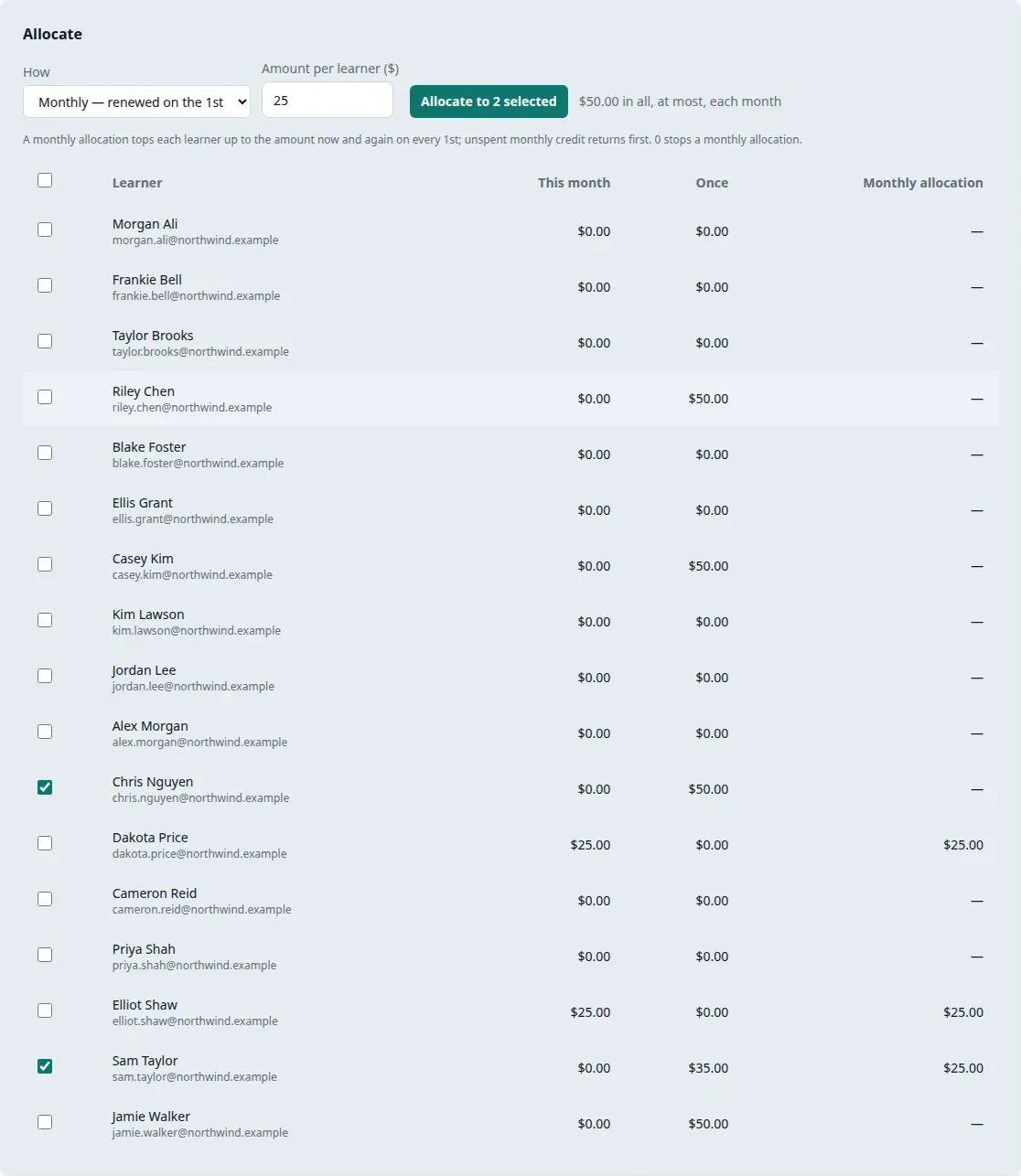
Under Allocate, choose How:
- Once — stays until spent adds the amount to each learner’s balance.
- Monthly — renewed on the 1st tops each learner up to the amount now, and again on every 1st.
-
Enter the Amount per learner ($).
-
Tick learners in the table, or tick none to give to all of them. The table lists everyone in your organization, administrators and instructors included: they can be enrolled and learn like anyone else.
-
Choose Allocate to N selected or Allocate to all N learners. The total shows beside the button.
Good to know about allocating
- You can’t allocate more than is unallocated. An allocation that would go over is refused whole, and you’re told the shortfall.
- On the 1st, at midnight in your organization’s time zone, what is left of each learner’s monthly allocation comes back to Unallocated, and every monthly allocation is made again. If there isn’t enough for all of them, none is renewed and your administrators are emailed.
- To stop a monthly allocation, allocate 0 monthly to those learners.
- The table shows each learner’s This month, Once and Monthly allocation.
Requests from learners
Learners can ask you for credit from their My credit page. You’re emailed, and the request waits on E-Commerce’s first tab, Learner Requests, which also shows your Unallocated credit.
- Approve gives the amount once, from Unallocated. To give a different amount, type it in Allocate ($) first.
- Decline, with a Note if you want to say why.
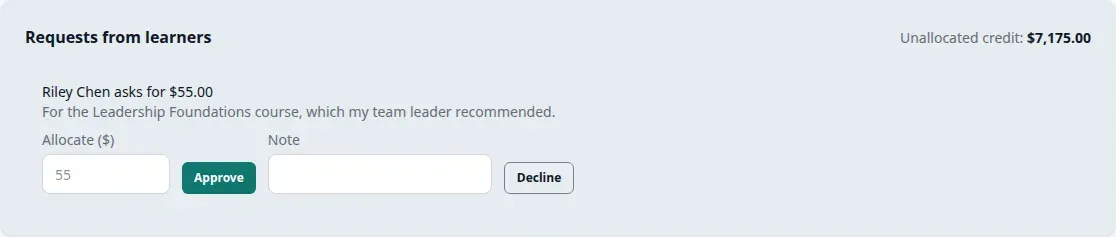
The learner is emailed either way. A learner can have one request open at a time.
Learners’ own money
Under Learners may add their own money, choose whether learners may pay with their own card when their credit runs short. It’s allowed unless your organization or one above it has turned it off. If there’s an organization above yours, choose Inherit from it or Set for this organization, then Save.
- Their own money stays theirs. It is spent after what you allocate, never comes back to your organization, and you can’t reallocate it.
- Turning it off leaves money they’ve already added spendable.
What credit pays for
- A learner enrolling themselves in a course with a price pays from their balance: this month’s allocation first, then what you allocated once, then their own money. If that’s not enough, they aren’t enrolled and are offered to ask you, or to top up if you allow it.
- Enrolments you make, automatic enrolments and re-enrolments when a completion lapses are paid from Unallocated, never from the learner’s balance. If Unallocated is short, your enrolment is refused. An automatic enrolment or re-enrolment is skipped, and your administrators are emailed.
- A purchase covers one enrolment. If an enrolment is withdrawn before the learner opens a unit or starts the test, the price goes back where it came from. After that it isn’t refunded.
Refunds
- When some unallocated credit was paid by card, the page offers Refund the amount. It goes back to the cards that paid, most recent payments first, with tax in proportion, and your seller is emailed.
- Credit Acadenix added against an invoice isn’t refunded here. Ask Acadenix.
- If your seller refunds a payment directly in Stripe, it comes off Unallocated, which can go below zero. Until you buy more, allocations, enrolments your organization pays for and monthly renewals stop.
When learners or your organization move
- An archived learner’s allocated credit returns to Unallocated. Their own money is kept for them if they come back.
- A learner moved to another organization returns their allocated credit to you. Their own money goes with them.
- If your organization moves under a different seller, credit bought from the old one shows as held: it can’t be spent, but it can still be refunded. Acadenix can transfer it to your new seller.
If this didn’t help
Ask Nix to log a support ticket, or open Support under Need help?.
Copyright © 2026 Acadenix.com