
Invite links and registration
Besides being added by you (see Add a user), people join your organization through its invite link, or by registering with an email address on its registration domains. The invite link takes work email addresses: someone arriving with a personal address, such as gmail.com, is asked for their work address, unless a global administrator has set your organization to accept registrations from any domain.
Hand out the invite link
-
In the sidebar, choose Users, then Invite users. It appears while invite links are allowed.
-
The first time, choose Generate link.
-
Choose Copy link to share it yourself, or type addresses under Send the link by email, one per line, and choose Send invitations. Each gets the User invited email; the addresses aren’t stored.
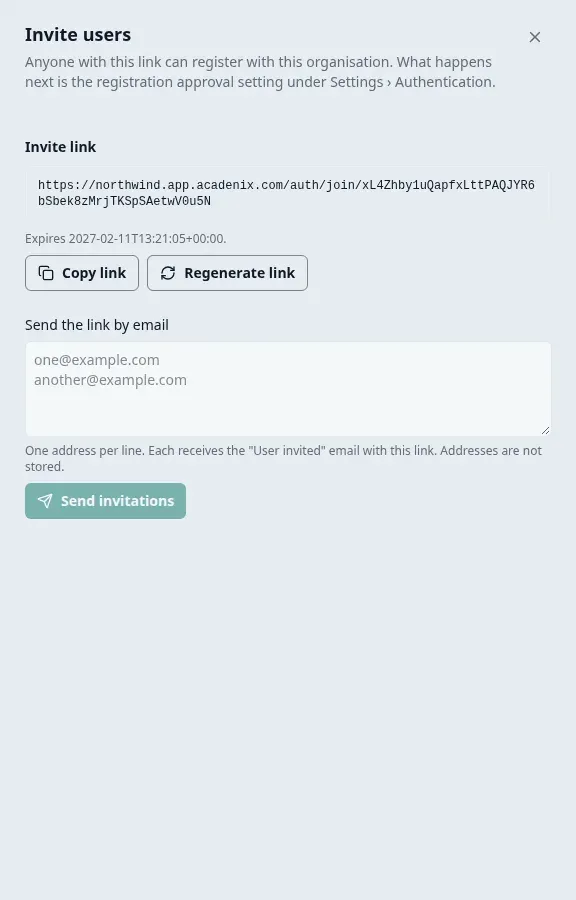
A link lasts three months, and your administrators are emailed three days before it expires. Regenerate link replaces it and the old link stops working at once. When a link expires or is replaced, registrations still waiting on it are removed.
Choose what happens to registrations
-
In the sidebar, choose Settings, then the Authentication tab.
-
Under Invite links and registration approval, choose the Registration approval:
- Require approval (the default): the account waits, can’t sign in and holds no seat until an administrator approves it.
- Notify only: the account is live at once and administrators are told, if that email is switched on.
- Off: the account is live at once and nobody is told.
-
Untick Allow invite links to admit people only from your registration domains. The link stops working at once, and nobody can create an account on another address, not even an administrator.
-
Accept registrations from any domain lets the invite link take personal addresses too. Only a global administrator can tick it; for everyone else it shows how it is set. Ticked, it applies to your organization and to every organization beneath it that hasn’t been set on its own, and shows there as set by the organization above.
-
Choose Save Settings.
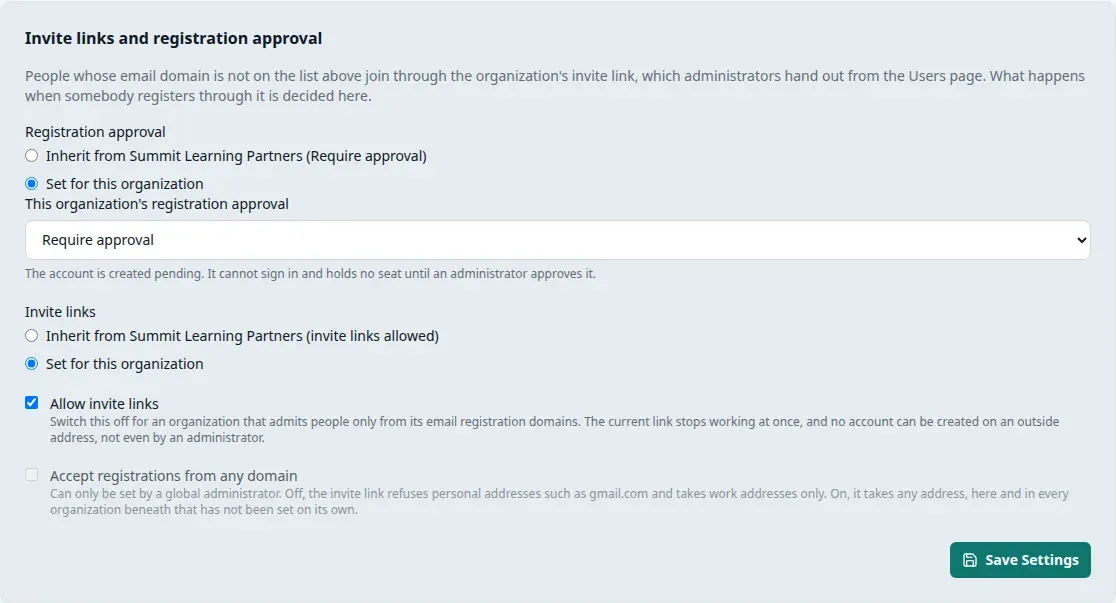
Beneath the top of the hierarchy, each setting offers Inherit from the organization above, or Set for this organization.
Approve someone
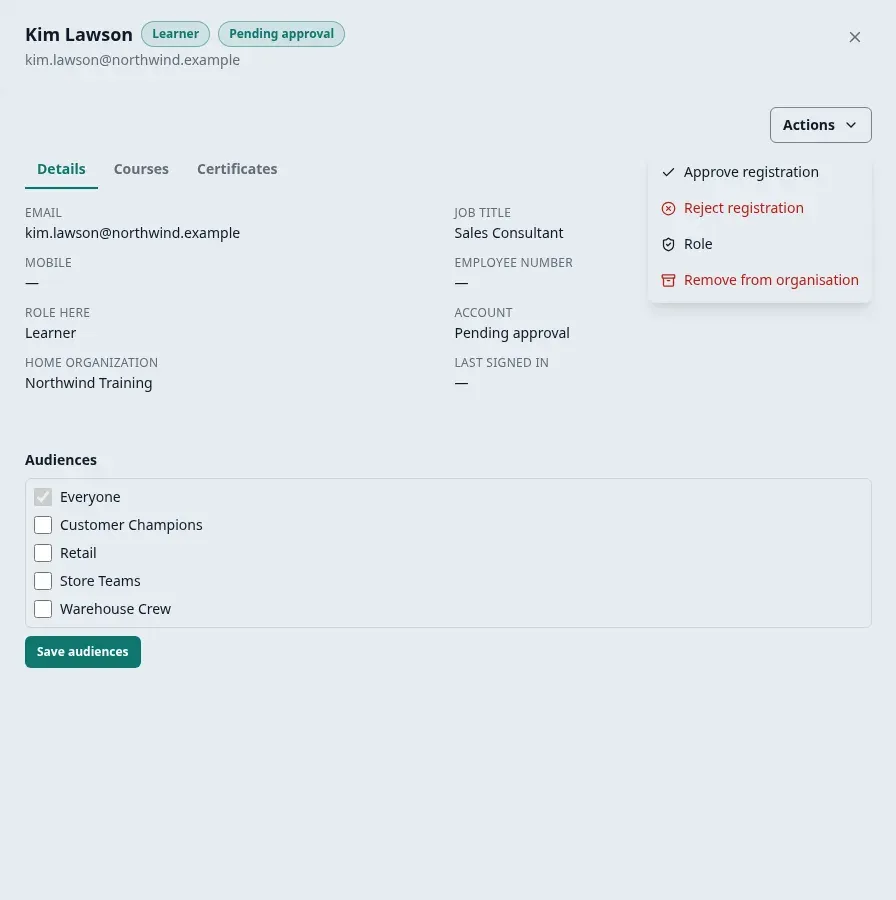
Waiting registrations show Pending approval in the Status column on Users. Open the person, choose Actions, then Approve registration (they are emailed that they can sign in) or Reject registration (the account is removed and nobody is emailed).
Email registration domains
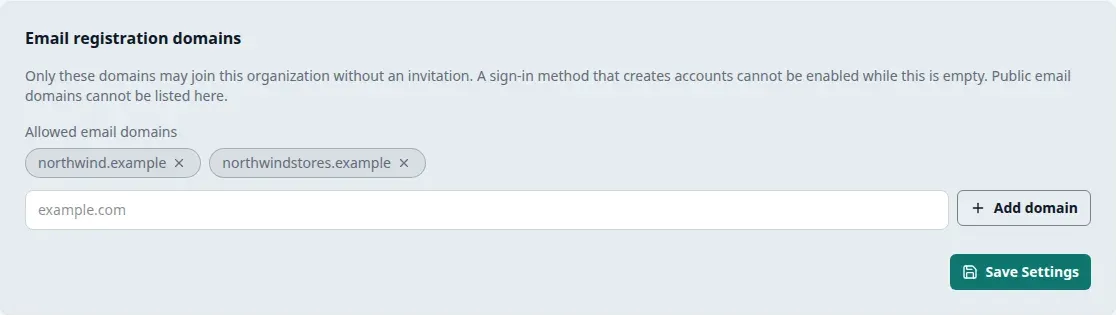
Under Email registration domains on the same tab, enter a domain, choose Add domain, then Save Settings. People with a verified address on one of them can create their own account from your sign-in page, without an invitation and without approval, when a sign-in method allows it (see Sign-in methods and single sign-on).
Learners only
For an organization you run from above for people who only learn, such as a Free plan’s, an administrator of an organization above it can switch on Learners only on the same tab.
- Nobody can be an Admin or Instructor there, not even a global administrator. Add user, Role and Move offer Learner only. You manage the organization from the one above it.
- Only an administrator of an organization above can switch it, on or off. It can’t be switched on while anyone there is an Admin or Instructor; the message names them.
- It’s off unless switched on, and organizations beneath don’t inherit it.
Good to know
- The domain list is your organization’s own. It isn’t inherited from the organization above or passed to those beneath.
- Public email domains such as webmail providers can’t be listed.
- Without registration domains, no sign-in method can create accounts, and invite links can’t be switched off.
- Invite users warns you when no sign-in method could sign an invitee in.
- People who register go into the audiences ticked Assign on registration; someone waiting for approval goes in once approved.
If this didn’t help
Ask Nix to log a support ticket, or open Support under Need help?.
Copyright © 2026 Acadenix.com