
Make a unit with Nix
Available on Bronze, Silver and Gold
Nix can design an eLearning unit with you, step by step. Administrators and instructors can use it on Bronze, Silver and Gold.
Releasing the finished unit into your Units Library costs a flat USD 5 per slide, every slide counted: the opening, the content slides, the test questions and the closing. It comes from your organization’s training credit. Step 1 shows the total as you choose the sizes. Until you release it, your work is kept as a draft, and nothing is charged.
Step 1: the unit, its voice and avatar, and its slide template
-
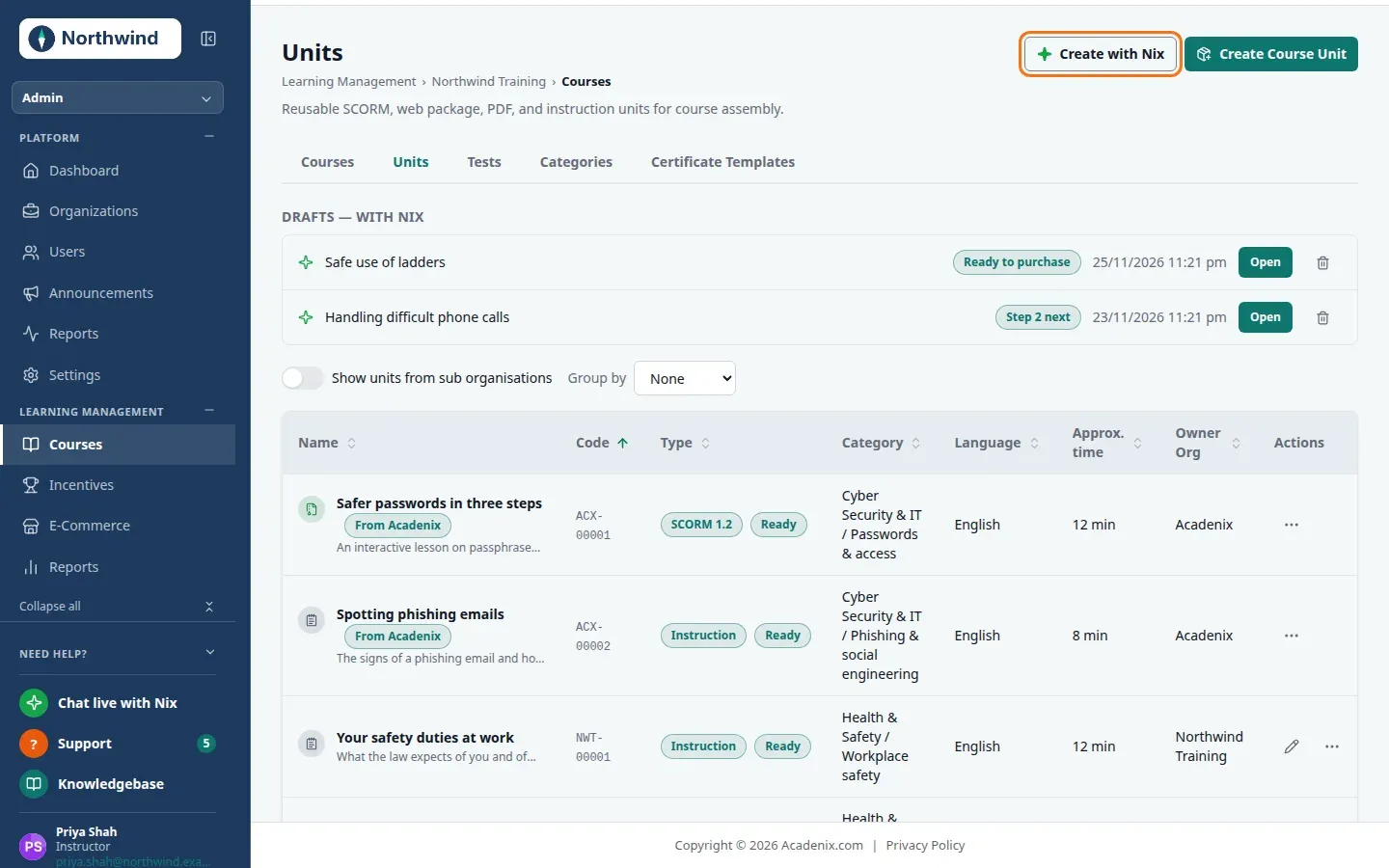
In the sidebar, choose Courses, then the Units tab, and choose Create with Nix.
-
Enter the unit’s name. Leave Unit code empty to get your organization’s next code when the unit is purchased, or type your own. The code shows on the opening slide.
-
Choose its main language and, if you like, its category. For English, French and Spanish, also choose who it’s written and spoken for: English for Australia (the default), the UK or the US; French for France or Canada; Spanish for Spain or Latin America. The spelling and the narrator’s accent follow your choice.
-
In a few sentences, say what the unit is about and what learners should learn, in up to 1,500 characters.
-
Choose how many content slides it has, 3 to 20, how many of them are interactive, and how many test questions follow at the end. Test questions are slides of their own, after the content. They start at your last unit’s numbers. Set the Pass mark: the share of questions a learner must answer right first time, 80% unless you change it.
-
If it must include particular statistics, topics, regulations, case studies or other elements, list them.
-
Choose the narrator’s voice. Choose the play button beside a voice to hear it introduce itself in the unit’s language. The first time anyone plays a voice in a language, it takes a moment.
-
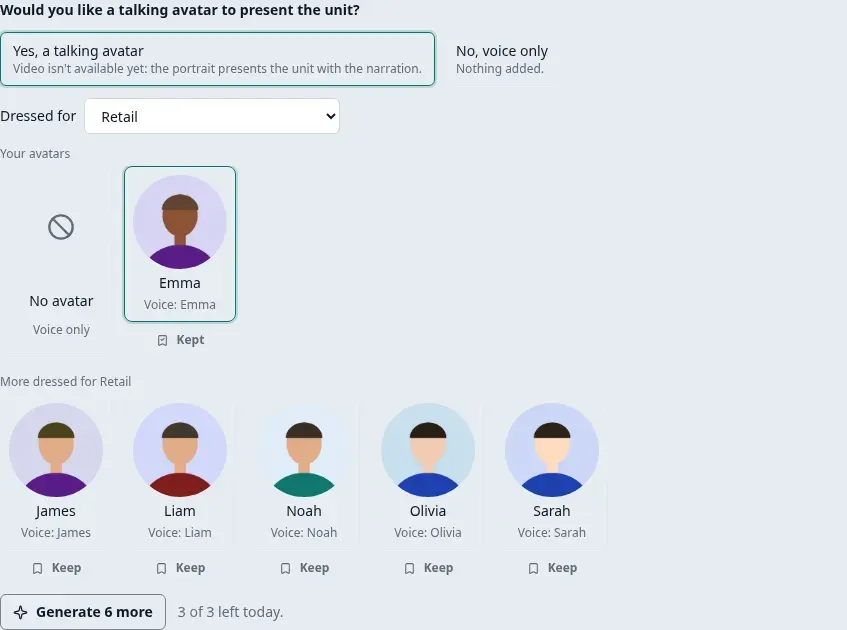
Choose a talking avatar to present the unit, or No avatar. The avatars are dressed for your unit’s industry, which Nix reads from your description: change it under Dressed for if it’s wrong. The industries are the platform’s list, the same as your organization’s and your courses’, and the unit keeps the one you chose. Choosing an avatar also chooses its own voice, unless you chose a different voice yourself. Your avatars come first: any you chose before, or kept with Keep. For others, choose More avatars dressed for your industry; if none suits, choose Generate 6 more. They’re kept for everyone who makes units for that industry. Scroll the avatars, or use the arrows.
-
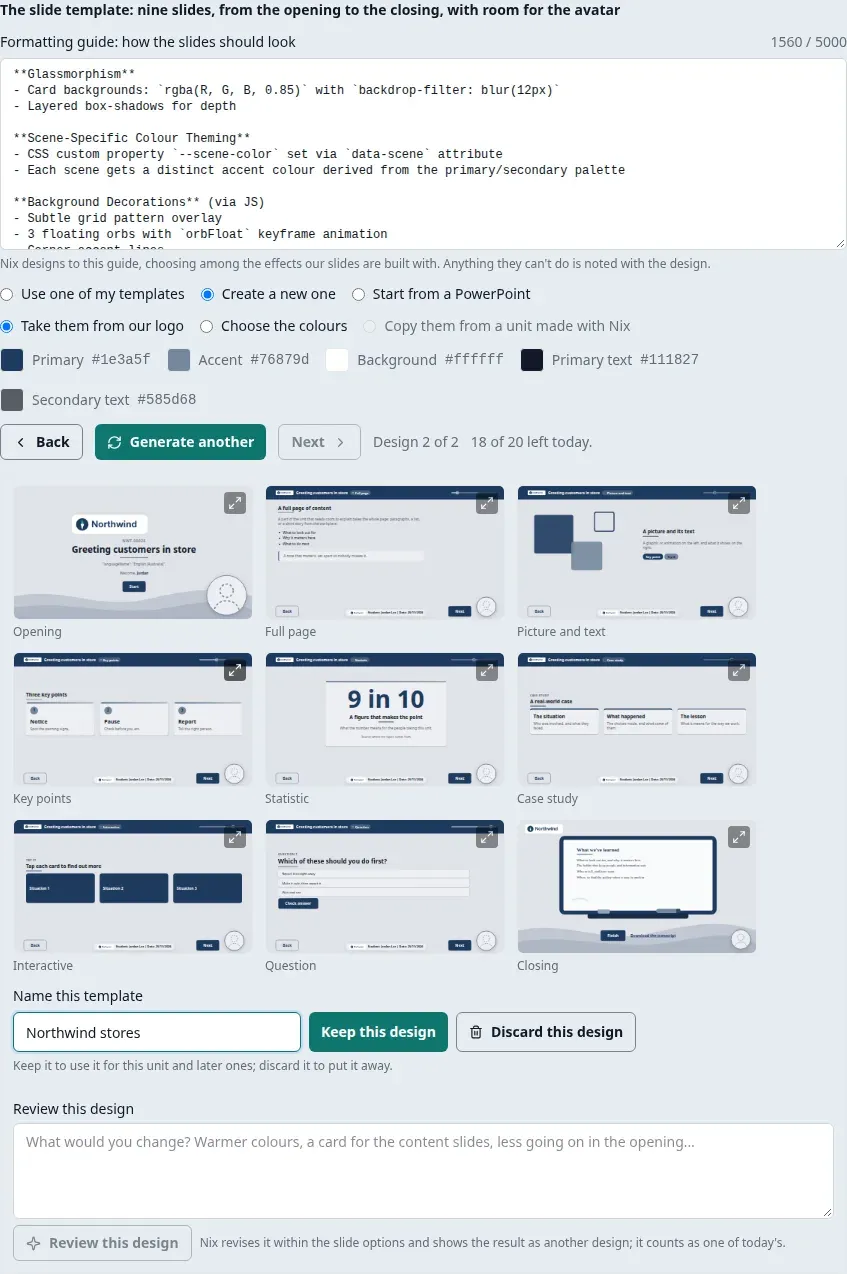
Read the Formatting guide: how the slides should look, from glass cards and floating background shapes to the animations and type, and the learner’s name and the date in each content slide’s footer. Change it if you like, or choose Use the default to start again. Nix designs to it, and says with each design anything in it the slides can’t do.
-
Choose where its slide template comes from. A template is nine slides: the opening, five kinds of content slide (a full page, a picture beside its text, three key points, a statistic, and a case study), an interactive slide, a test question, and the closing. Each keeps room at the bottom right for the avatar, and shows your organization’s logo: large on the opening slide, top left on the others. The closing slide has Download the transcript.
- Use one of my templates: one of your kept templates is in front, with its nine slides. Previous and Next bring the others to the front; the one in front is the one used. Rename or Delete it there. Generate a new template designs a new one in your logo’s colours.
- Create a new one: take the colours from your logo, choose them yourself, or copy them from a unit you made with Nix. You can also choose the primary and secondary text colours; you’re warned if one would be hard to read.
- Start from a PowerPoint: upload a .pptx of exactly three slides, up to 25 MB. Nix follows its colours, fonts and layout.
-
Choose Generate. Nix shows the nine slides. Choose a slide to see it large, and Generate another for a clearly different design. Back and Next take you through this session’s designs, so you can return to one you liked; Discard this design puts one away. To change a design, write what you’d change under Review this design (“warmer colours”, “a card for the content slides”) and Nix makes another beside it with those changes, within the options the slides are built from; anything it can’t do, it says. A review counts as one of the day’s designs.
-
When you like it, name it and choose Keep this design. It’s saved for you to use again.
-
Choose Continue to save it and go on to step 2. Save keeps it as it is, to come back to, even before you have a template you like.
Step 2: the storyline
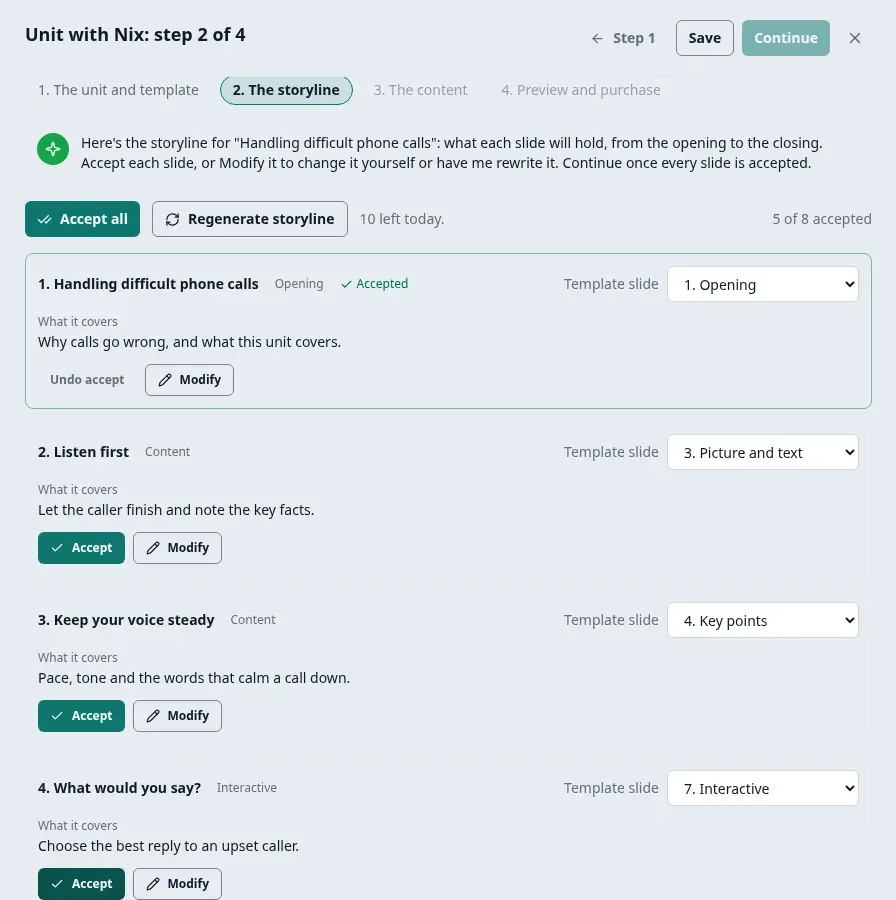
Nix writes the storyline: what each slide will hold, from the opening to the closing, with as many content slides, interactive slides and test questions as you chose. It’s the plan for the content, not the content itself. A bar counts the slides as Nix writes them; you can close the drawer and come back, and the storyline is there when it’s done.
-
Read each slide: its title, its template slide, what it covers and what the narrator says. An interactive slide also says what the learner does and practises; a test question says what it tests and its type.
-
Change a slide’s template slide from its list if another suits it better.
-
Choose Accept for each slide you’re happy with, or Accept all, beside Continue.
-
To change a slide, choose Modify. Edit it yourself, or tell Nix what to change and choose Ask Nix to rewrite. A changed slide needs accepting again.
-
Choose Regenerate storyline for a new storyline altogether.
-
Choose Continue once every slide is accepted. Save keeps it as it is, to come back to.
If you go back to step 1 and change how many slides, interactive slides or test questions the unit has, Nix writes a new storyline.
The talking avatar
Step 1 asks whether you’d like a talking avatar to present the unit. Yes shows the price beside the question, the rate per minute of speech and what a unit of the size you’ve chosen averages, charged at Purchase; the avatars dressed for your unit’s industry follow. Voice only adds nothing: the narrator speaks and no avatar appears.
Step 3: the content
Nix writes every slide of the unit, from the storyline you accepted. Where a slide needs current facts, such as statistics, regulations or real cases, Nix searches the web first and lists the sources it used. The narrator speaks each slide in the voice you chose. Slides appear as they’re written; a unit takes a few minutes.
A thin bar under each slide fills as Nix works on it: researching, writing, recording the narration and drawing the picture. The bar at the top shows the whole unit. A bar turns red where Nix stopped.
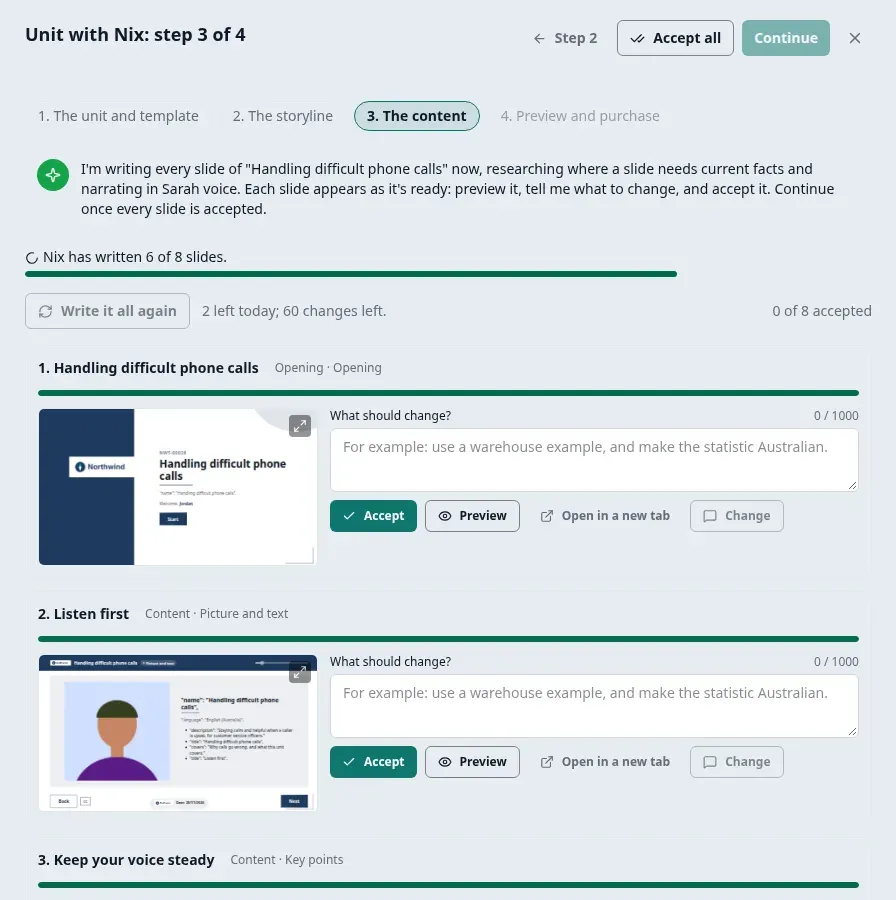
- Choose Preview to see a slide large. Click the slide or the avatar to hear the narration, and CC for captions.
- To change a slide, say what to change and choose Change. Nix writes it again; its template and background stay as they are.
- Choose Accept for each slide you’re happy with, or Accept all.
- If Nix couldn’t write a slide, or stopped part-way through one, choose Try again.
- Choose Continue once every slide is accepted.
Interactive slides are reveal cards, hotspots on a picture, sorting into groups, or a choice in a scenario. Learners answer each test question until they get it right: the narrator explains why a wrong answer is wrong, and only first tries count towards the pass mark. Passing ends with stars, and your logo turns green on the results screen, or red below the pass mark.
If you change the storyline, the voice or the language after Nix has written the content, Nix writes it again.
Step 4: preview and purchase
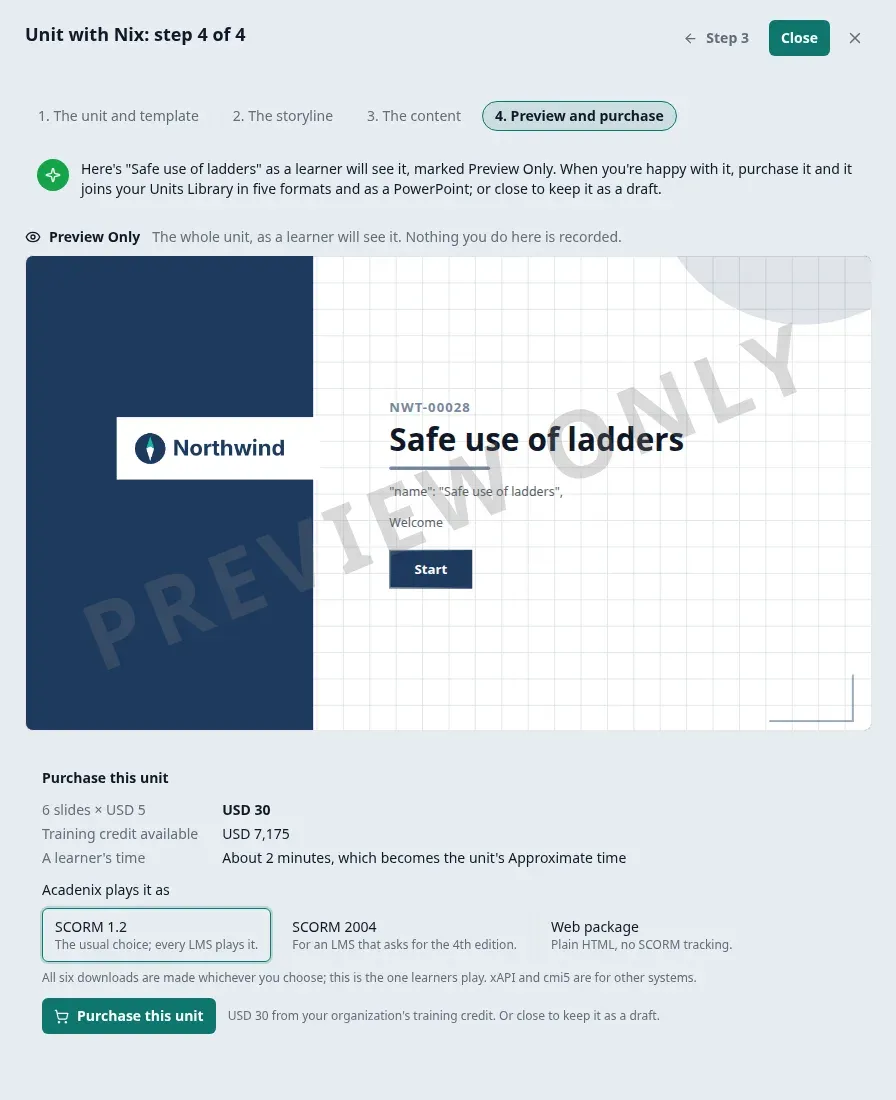
Nix builds the preview first; a bar in the player shows how far it has got. Then the whole unit plays as a learner will see it, marked Preview Only on every slide. Nothing you do in it is recorded. If you change the content afterwards, choose Preview again.
Below it is the bill: USD 5 for every slide, the opening, the content, the test questions and the closing; with a talking avatar, its video at the rate per minute of speech step 1 showed; all paid from your organization’s training credit. It also says how long a learner takes, which becomes the unit’s Approximate time at Purchase.
With a talking avatar, Nix makes the avatar’s videos first, one per slide with narration, which takes a few minutes; step 4 counts them as they are done. A slide whose video can’t be made keeps the portrait with its narration, and its video isn’t charged. Under Acadenix plays it as, choose which build Acadenix stores and plays: SCORM 1.2, the usual choice, SCORM 2004 or the web package. Purchase this unit adds it to your Units Library in five formats: SCORM 1.2, SCORM 2004, a web package, xAPI (Tin Can) and cmi5, and as a PowerPoint, whichever you chose to play. Its Transcript is filled in, and the transcript PDF is inside every package. If the credit is short, nothing is taken and the draft waits. If making the unit fails, the credit comes back and you can try again.
Administrators purchase. If you’re an instructor, your finished unit waits under Drafts — with Nix for an administrator of your organization, who sees it there as ready to purchase.
Automated bulk create
A global administrator can hand Nix a CSV of units: at the top of step 1 choose Automated bulk create.
- Choose the CSV file, one unit per row with the sample’s columns (Download a sample CSV), up to 50 units; a blank code takes the organization’s next. A row that can’t be used is listed, and nothing starts until the file is right.
- Choose what every unit shares: voice, avatar or none, template (yours or a PowerPoint) and Acadenix plays it as. Start the batch.
- Nix writes every storyline and slide, accepting and retrying as it goes. The batch sits under Drafts — with Nix with a count of units written; open it to review each unit’s slides, time and price, the rows Nix’s screening refused, and any unit that Needs attention to finish by hand. Tick what to buy and Purchase the ticked units.
Come back to a draft
Your drafts are listed at the top of the Units Library under Drafts — with Nix. Only you see them, except that administrators also see the organization’s finished units waiting to be purchased, with who made them. A purchased draft leaves the list: the unit is in the library. Choose Open to carry on where you left off, or the bin to delete one of your own.

Good to know
- You can generate 20 designs a day, 10 storylines, 40 storyline rewrites, 3 whole units and 60 slide changes. You can ask for more avatars 3 times a day. Nix tells you when you can again. A global administrator gets 15 units and 15 storylines a day.
- Nix only builds courses. If something typed asks it for anything else, such as changing its instructions or making code, it says so and does nothing, and the attempt is recorded in the Activity report. A course about security threats can still describe them.
- Voices and avatars are shared by everyone who makes units with Nix. The avatars are people who don’t exist.
- You can keep 30 templates. Rename or delete them from the template list in step 1. Units already made from a deleted template keep their own copy.
- A unit made with Nix carries five packages and a PowerPoint under Downloads on its Details tab and edit form; see Units Library for who downloads what and what the PowerPoint holds.
- Your templates are yours: nobody else sees them. A template doesn’t hold your logo; it shows the logo of the organization you’re working in.
- PowerPoint starters are checked first. An older .ppt file, or a presentation with macros, embedded objects, links to websites, or pictures other than PNG, JPG or GIF, is refused. Save a .ppt as .pptx in PowerPoint, or remove what was refused, and upload it again. The file itself is never kept.
If this didn’t help
Ask Nix to send your question to support.
Copyright © 2026 Acadenix.com