
Change your name, picture and preferences
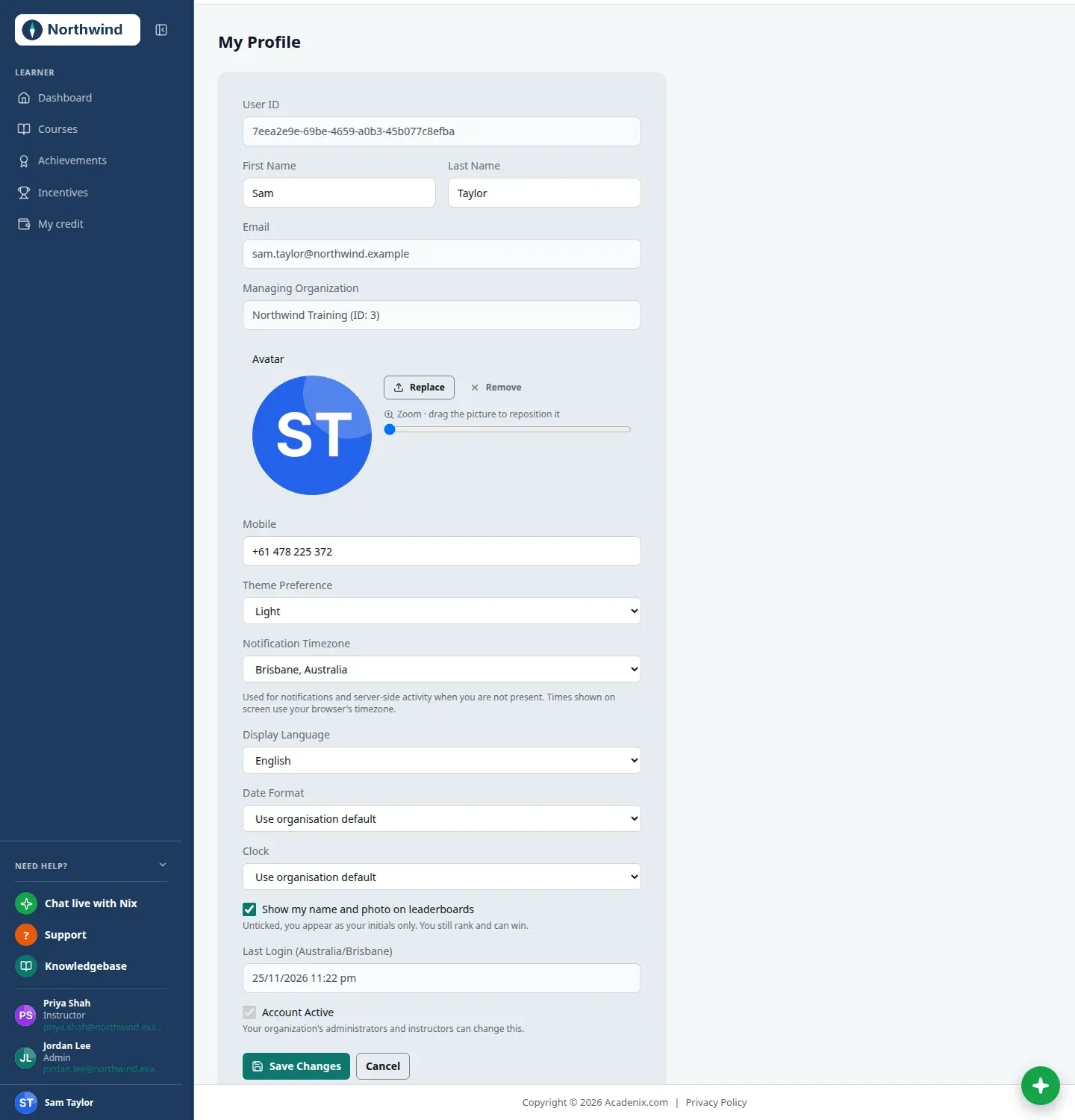
Your profile holds your name, your picture and a few preferences of your own.
Steps
-
At the bottom of the sidebar, choose your name, then Profile. My Profile opens.
-
Change what you need:
-
First Name and Last Name.
-
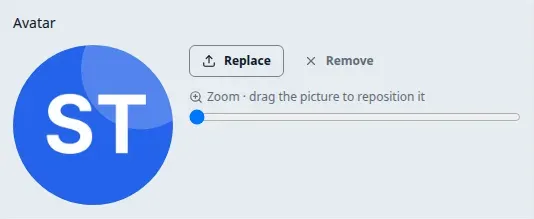
Avatar: choose Choose a PNG, or drag a picture onto the circle (PNG, up to 2 MB). Drag the picture or use the arrow keys to position it, and Zoom to size it. Remove shows your initials instead.
-
Mobile.
-
Theme Preference: System, Light or Dark.
-
Notification Timezone, or Use organisation notification timezone.
-
Display Language, or Use organisation default.
-
Date Format (dd/mm/yyyy, mm/dd/yyyy or yyyy-mm-dd) and Clock (12-hour or 24-hour), or Use organisation default. Every date and time on screen, reports included, follows them.
-
Show my name and photo on leaderboards: untick it to appear as your initials only.
-
-
Choose Save Changes.
Good to know
- Your Email, User ID and Managing Organization are shown for reference and can’t be changed here.
- Account Active shows whether your account is on. Only your organization’s administrators can change it.
- The sun or moon beside your name at the bottom of the sidebar switches between light and dark. If your organization uses its own fixed colours, it isn’t there and your theme choice has no effect.
- Dates on screen use your browser’s timezone. The notification timezone is for emails and for what happens while you are away.
- Your screens and emails follow your Display Language straight away. Without one, they follow your organization’s default language. Only languages translated in full are listed; more join as they are translated.
- Migrate profile, in the same menu as Profile, opens Learning history from another organization. If you had an account in another organization of your group, you can ask its administrators for a copy of your completions and certificates there.
- My audiences lists your audiences. Join an audience takes a PIN from your administrator. See Join an audience.
If this didn’t help
Ask Nix to log a support ticket, or open Support under Need help?.
Copyright © 2026 Acadenix.com