
Buy or change your tier
Your organization buys its tier from the nearest organization above it that sells, named on screen after Sold by. You pay on Stripe’s pages: card details are never entered in Acadenix, or in a chat.
Buy a tier
For an organization with no tier of its own, or on an evaluation:
-
In the sidebar, choose Settings, then the About tab.
-
Choose Upgrade now. It shows only when there is a seller above your organization.
-
Under Choose a tier, pick one. Each shows its price per user per month and the fewest users it sells.
-
Enter Active users. It starts at that minimum, or at your number of learners if that is more.
-
Check the total. Tiers are billed yearly. Bronze adds a one-off charge for your Platform licence unless you already hold one.
-
Choose Buy Bronze, Buy Silver or Buy Gold, and pay on Stripe’s page.
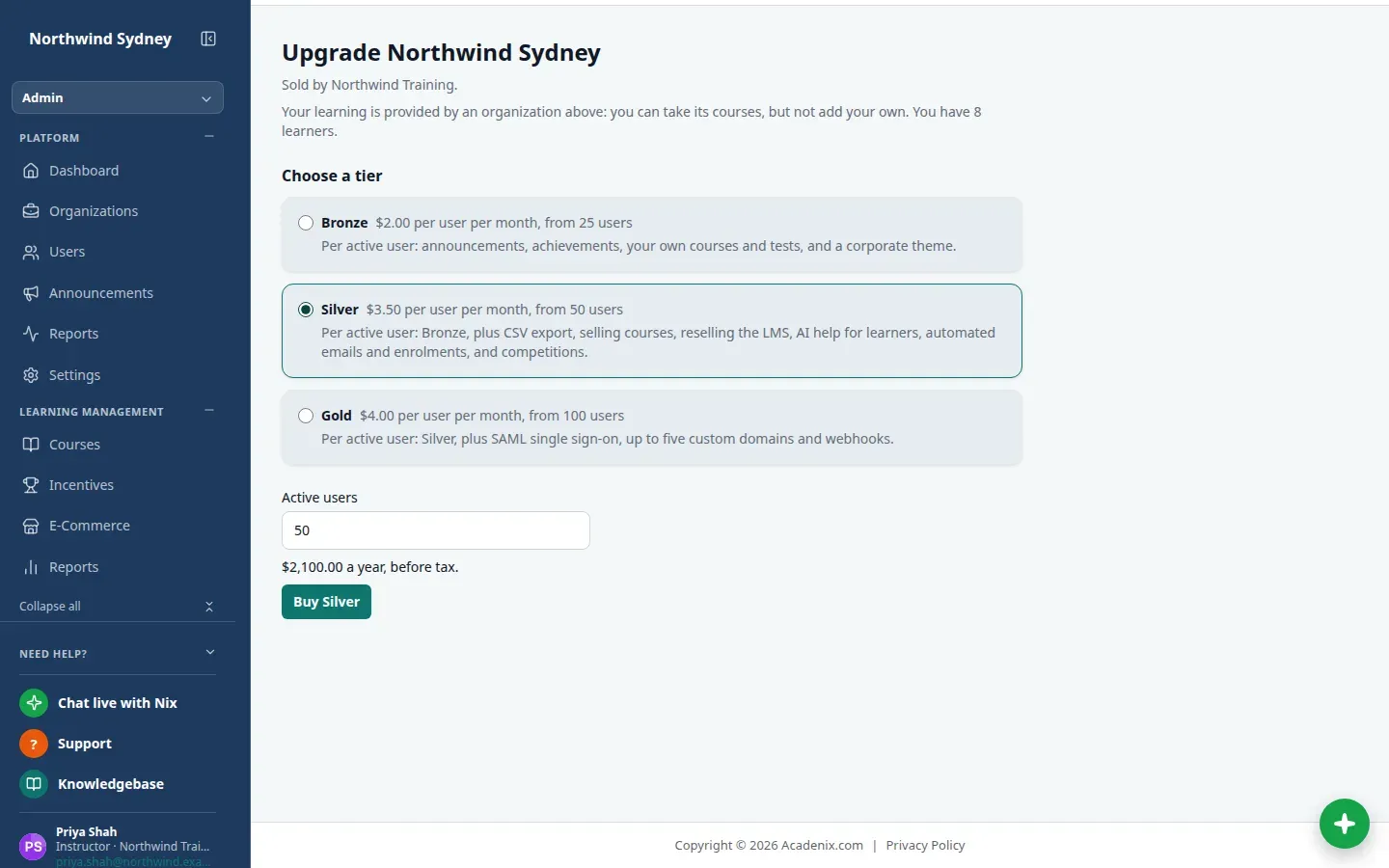
Your tier applies once Stripe confirms the payment. From then on your learners use your own seats, not those of the organization above.
Change users or tier, or cancel
Once your organization pays for its own licence:
-
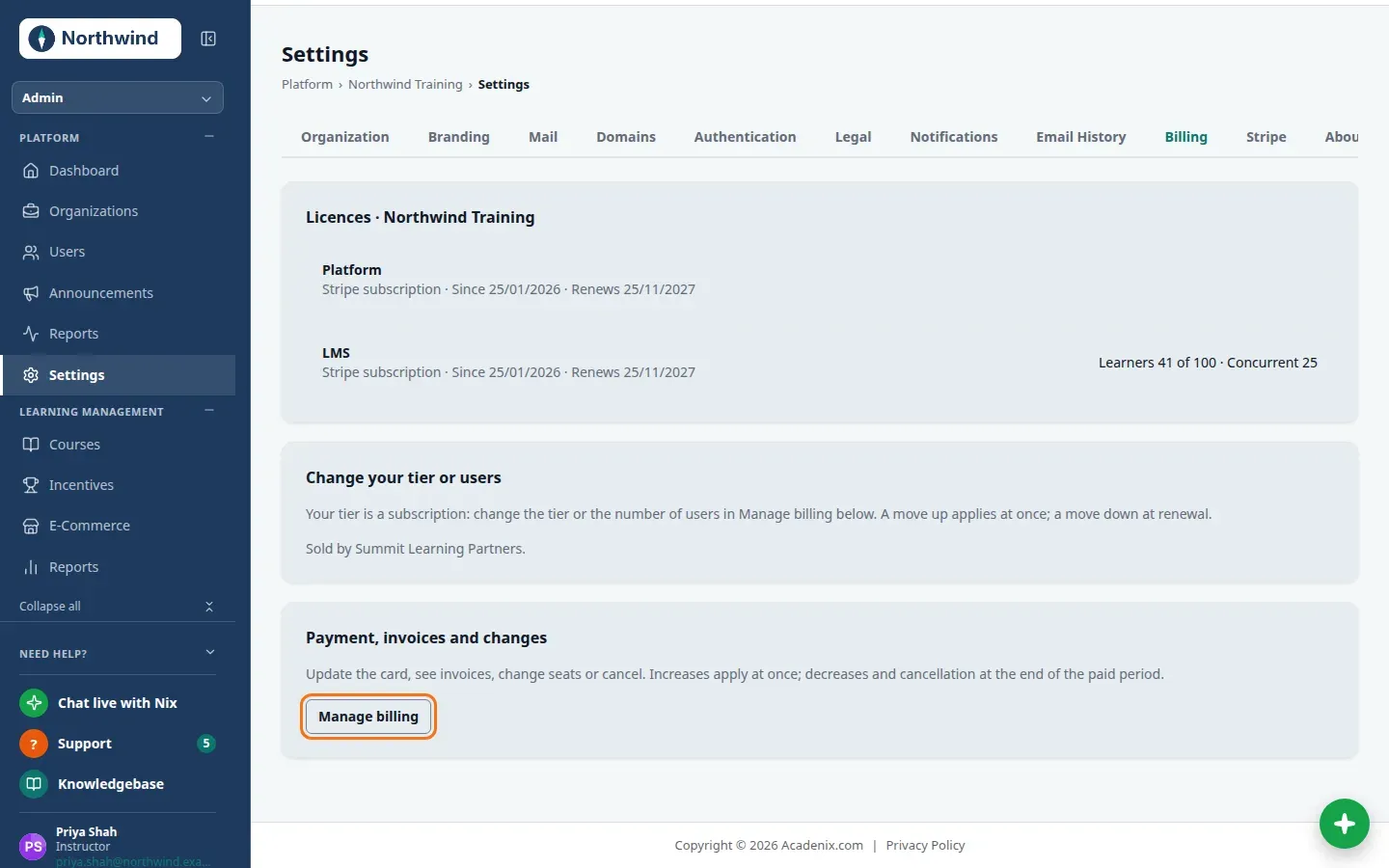
In the sidebar, choose Settings, then the Billing tab.
-
Under Payment, invoices and changes, choose Manage billing. Stripe’s billing page opens.
-
Update your card, see invoices, change the number of users or the tier, or cancel.
More users or a higher tier apply at once, charged for the rest of the period. Fewer users, a lower tier and cancelling apply at the end of the paid period.
Good to know
- Billing appears only when your organization pays for its own licence. A licence provided from above is billed there.
- Licences, at the top of Billing, lists your licences, when each began, and when it renews or ends.
- Buy a tier on Billing is for an organization with its own licence but no tier subscription yet: enter the tier’s quantity of users (for example Silver – quantity of users) and choose Buy.
- Back from paying, Billing says Payment received. On a first purchase your licence takes a few seconds to arrive from Stripe; the page says it is being set up and updates by itself.
- A licence shown as Manual grant is managed by Acadenix. Ask Acadenix to change it.
- If a payment fails, a banner says so while Stripe retries. Nothing changes for your users; update the card in Manage billing.
- Fewer users than learners puts you over your seats: nobody loses access, but nobody new can be enrolled. See Tiers, licences and seats.
- When a cancelled tier ends, learning stops and everything is kept. Upgrade now buys one again.
- Nothing is on sale here yet means your seller has no plan set up for you to buy. Ask them.
If this didn’t help
Ask Nix to log a support ticket, or open Support under Need help?.
Copyright © 2026 Acadenix.com