
Choose and customize certificate templates
A course can issue a certificate when a learner completes it, printed from a certificate template.
Make your own template
-
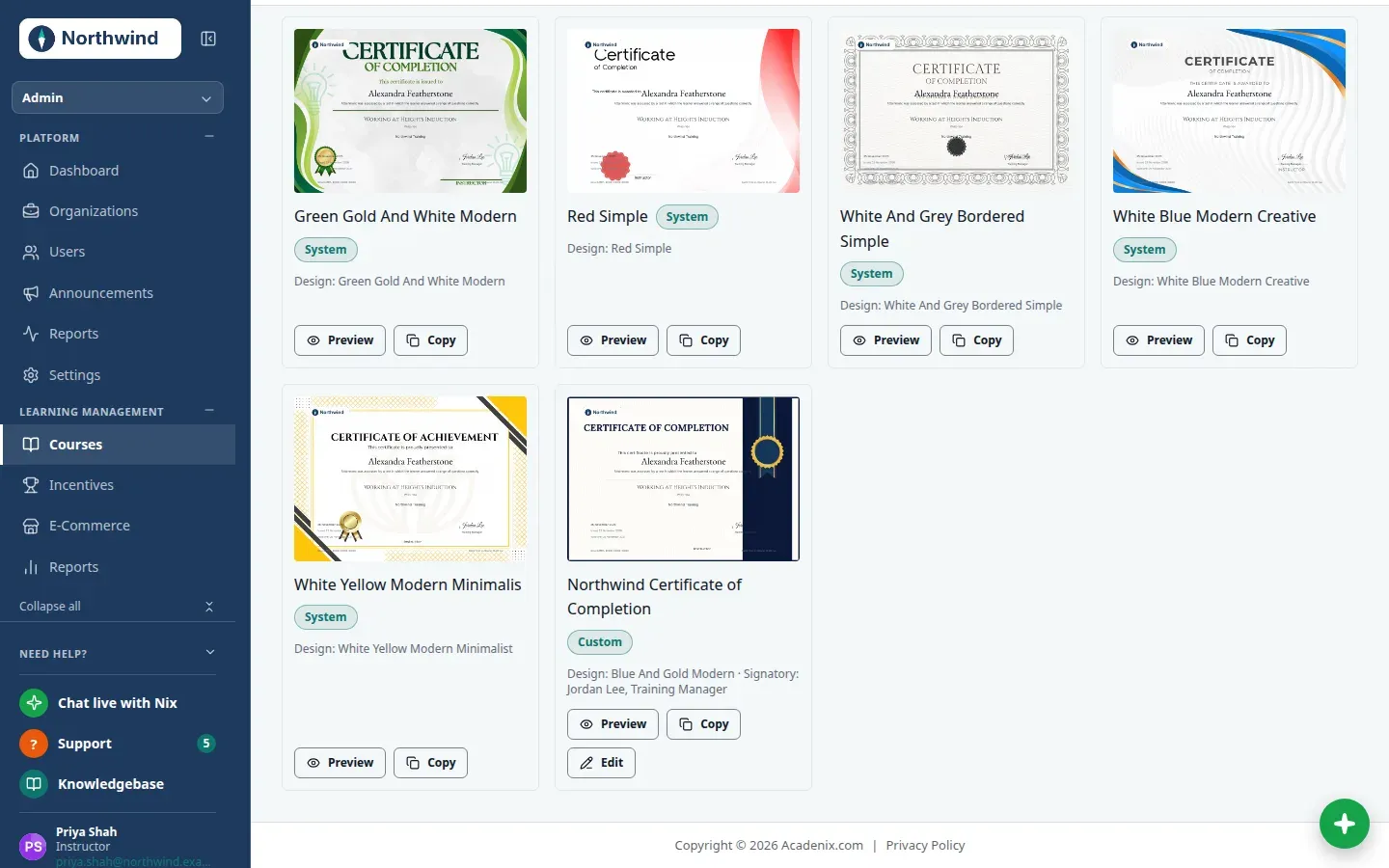
In the sidebar, choose Courses, then the Certificate Templates tab.
-
Choose Preview on a template to see a sample.
-
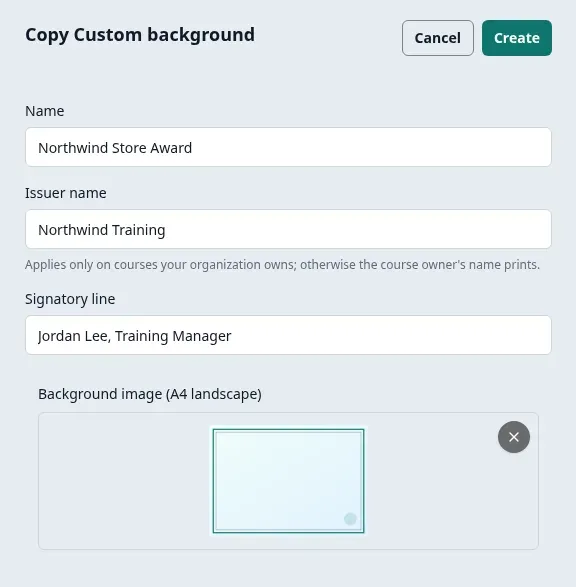
Choose Copy on the one you want. Enter a Name, and optionally an Issuer name and Signatory line. For the Custom background design, upload a Background image (A4 landscape).
-
Choose Create. Your copy is marked Custom, and Edit changes it later.
Give a course a certificate
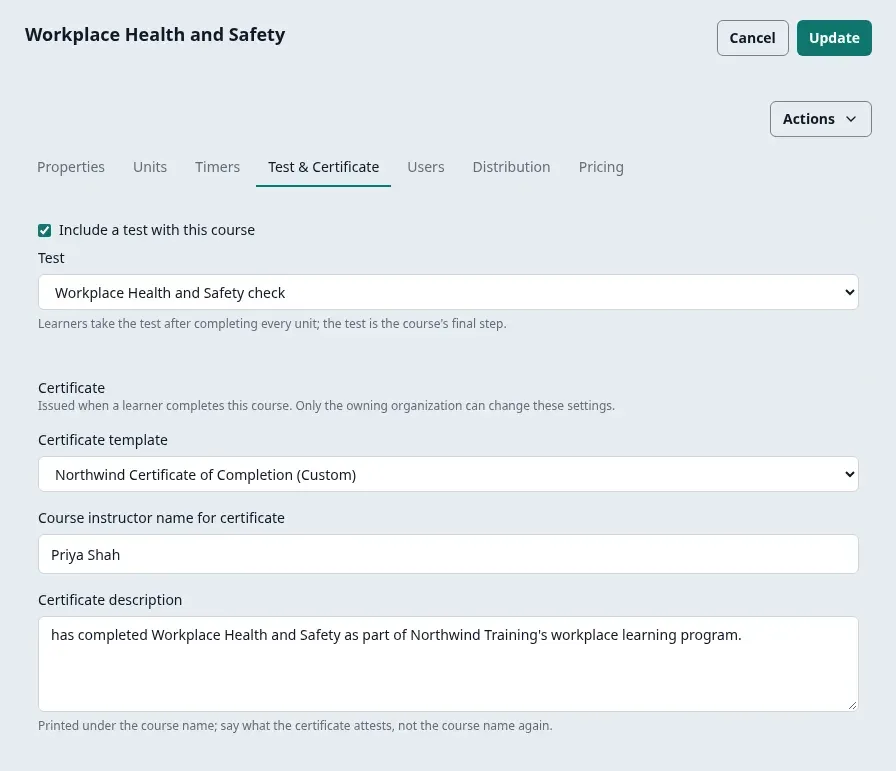
Open the course and, on Test & Certificate, choose the Certificate template, or No certificate. You can set the Course instructor name for certificate and the Certificate description, printed under the course name. Choose Update.
What a certificate shows
Depending on the design: the learner’s name, the course name and code, the certificate description, the issuing organization, the completion and issue dates, Valid until when the course sets a validity, the instructor name, the signatory line, the time spent on the course and a serial number. Time counts SCORM packages and the test, so a course of only pages and documents prints none.
Good to know
- Issuer name prints only on courses your organization owns; otherwise the course owner’s name prints.
- System templates are built in. You can use them and the custom templates of your organization and those above it, but edit only your own.
- A template marked No longer offered can’t be chosen again; courses already using it keep issuing it.
- Issued certificates never change when you edit a template or a course.
- To replace or revoke a learner’s certificate, open them on Users and choose the Certificates tab. Replace issues a new one with the current details; Revoke needs a reason. Only the organization that owns the course can do either.
- Choosing a course’s certificate is part of editing the course, so it is for the owning organization, with its own Silver or Gold plan.
If this didn’t help
Ask Nix to log a support ticket, or open Support under Need help?.
Copyright © 2026 Acadenix.com