
Your organization's address and custom domains
People reach your organization at its address on the platform, and, on Gold, at domains of your own such as learn.example.com. Both are on Settings, Domains.
Your address on the platform
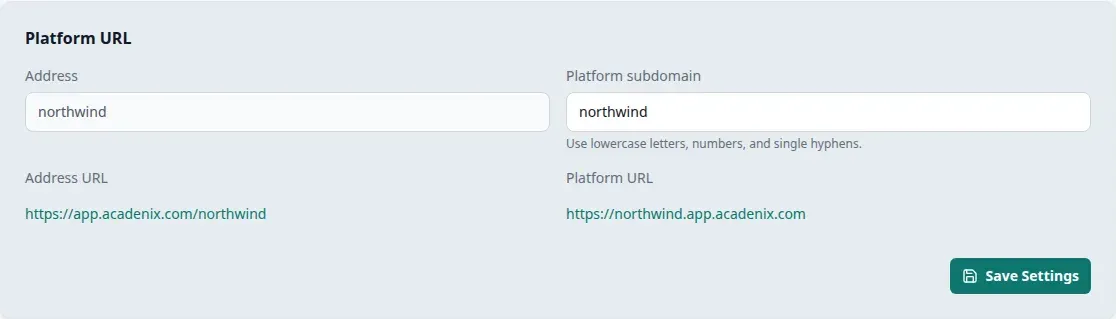
Platform URL shows your Address and Platform subdomain, and the links they make: Address URL and Platform URL.
- Address can be changed only by a global administrator.
- Platform subdomain is yours to change: lowercase letters, numbers and single hyphens. Choose Save Settings and confirm. The old name is released at once: links using it stop working, don’t redirect, and the name may be taken by another organization.
Add a custom domain
-
In the sidebar, choose Settings, then the Domains tab.
-
Under Custom domains, choose Add domain and enter the exact Hostname, such as learn.example.com. Wildcards are not supported.
-
Choose Continue, then Confirm and add domain. Adding a domain is a non-refundable $99 AUD charge.
-
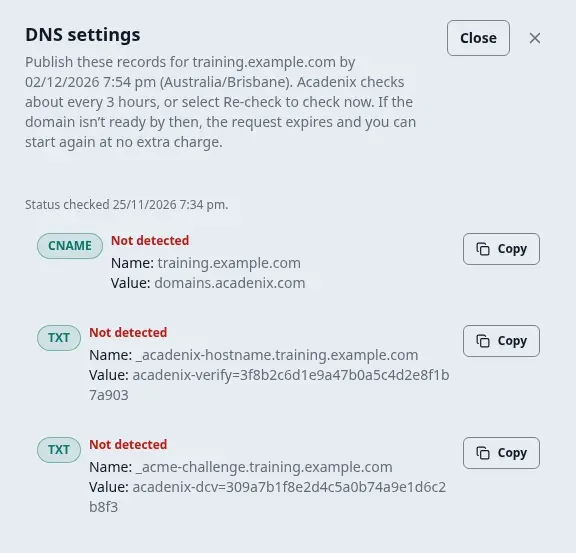
Choose DNS settings and publish the records it lists with your DNS provider: a CNAME for the hostname, and TXT records that prove it is yours and let its certificate be issued. Publish them by the deadline it shows, 7 days from when you added the domain: the certificate’s TXT record stops working after that. If someone else, such as your IT team or DNS host, publishes them, pass the deadline on.
-
Acadenix checks about every 3 hours, so the domain becomes active on its own once the records are right. Choose Re-check to check now. DNS changes can take a while to spread.
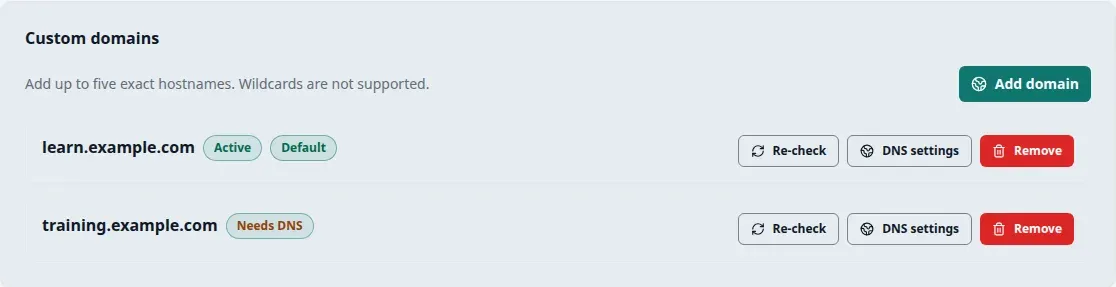
The domain moves through Needs DNS and Verifying to Active.
If the deadline passes
A domain that isn’t active within 7 days shows Expired, or sooner if the certificate authority gives up on it first. Nothing is lost: it keeps its charge and its place among your domains, and no one else can take the hostname.
- Choose Start again. It’s free: Acadenix restarts certificate validation on the same domain and gives you another 7 days.
- Open DNS settings and choose Re-check before publishing anything. The certificate’s TXT record may have a new value; if it has, replace the value you published with the new one. Keep the CNAME as it is.
If the certificate was issued after the deadline after all, the domain becomes Active at the next check, or straight away when you choose Re-check. Don’t remove an expired domain and add it again: that is a new $99 AUD charge, and Start again is free.
Good to know
- Custom domains need your organization’s own Gold licence, and Gold includes up to five. A domain you remove gives its place back.
- The first domain to become active is the default. Choose Make default on another active domain to switch; the others keep working and redirect to it.
- Keep the CNAME once it is active; the temporary TXT records may be removed.
- Removing a domain releases it for another organization and doesn’t refund its charge.
- Degraded means its DNS or certificate checks started failing: check its records and choose Re-check.
- Expired happens only to a domain that has never been active. An active domain’s certificate is renewed for you.
If this didn’t help
Ask Nix to log a support ticket, or open Support under Need help?.
Copyright © 2026 Acadenix.com