
Sign in to Acadenix
Acadenix has no passwords. You sign in with a one-time code sent to your email, or with an account your organization has connected.
Steps
-
Open your organization’s Acadenix address.
-
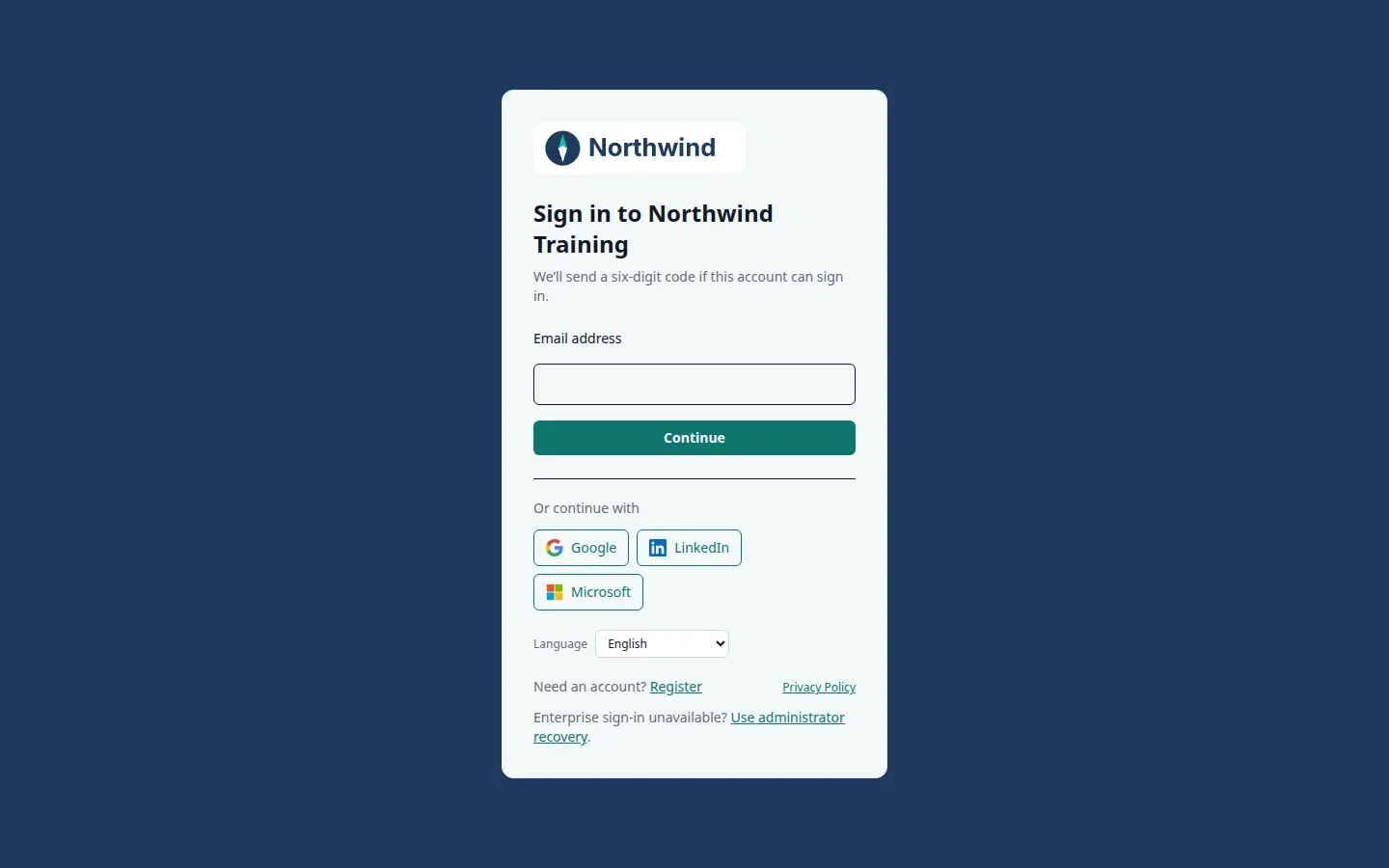
Enter your Email address and choose Continue.
-
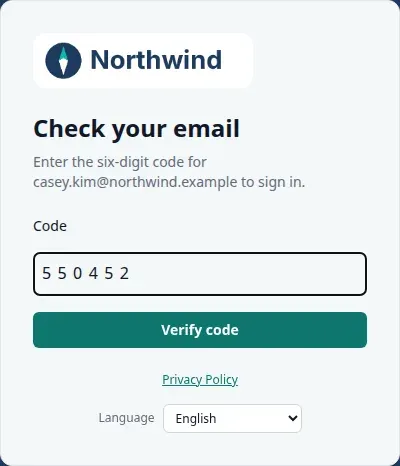
Find the six-digit code in your email, type it in Code and choose Verify code.
-
If you belong to more than one organization, choose one under Organization and choose Continue.
-
If your organization shows its Terms of Use, choose OK to carry on.
Other ways to sign in
Your organization may offer buttons under Or continue with (Google, LinkedIn or Microsoft, each with its logo) or under Enterprise identity providers. Choose one and sign in there. Some organizations take you straight to their own sign-in page.
Good to know
-
Language, just below the ways to sign in, changes the page’s language. Your choice is kept in this browser until you sign in; after that, your profile’s language applies.
-
Privacy Policy is beside Register, at the foot of the sign-in box.
-
A code works once, for five minutes, and stops working after three wrong tries. For a new one, go back to the sign-in page and enter your email again. Ask too often and you’ll be asked to wait.
-
No code? Check your spam folder, and that you used the address your account has. A code is only sent if that account can sign in here.
-
If it says your account doesn’t have access to this portal, check the address you opened, or ask your administrator.
-
If you do nothing for a while, you’re signed out and the sign-in screen appears by itself. Sign in again to carry on.
-
To sign out, open the menu under your name at the foot of the sidebar and choose Logout.
-
Use administrator recovery is for administrators only.
-
Never share a sign-in code with anyone, Nix included.
If this didn’t help
Ask Nix to log a support ticket, or open Support under Need help?.
Copyright © 2026 Acadenix.com