
Sign-in methods and single sign-on
Settings, Authentication decides how people sign in to your organization: with a one-time email code, with Google, Microsoft or LinkedIn, or, on Gold, with your own identity provider over SAML.
Choose the sign-in methods
-
In the sidebar, choose Settings, then the Authentication tab.
-
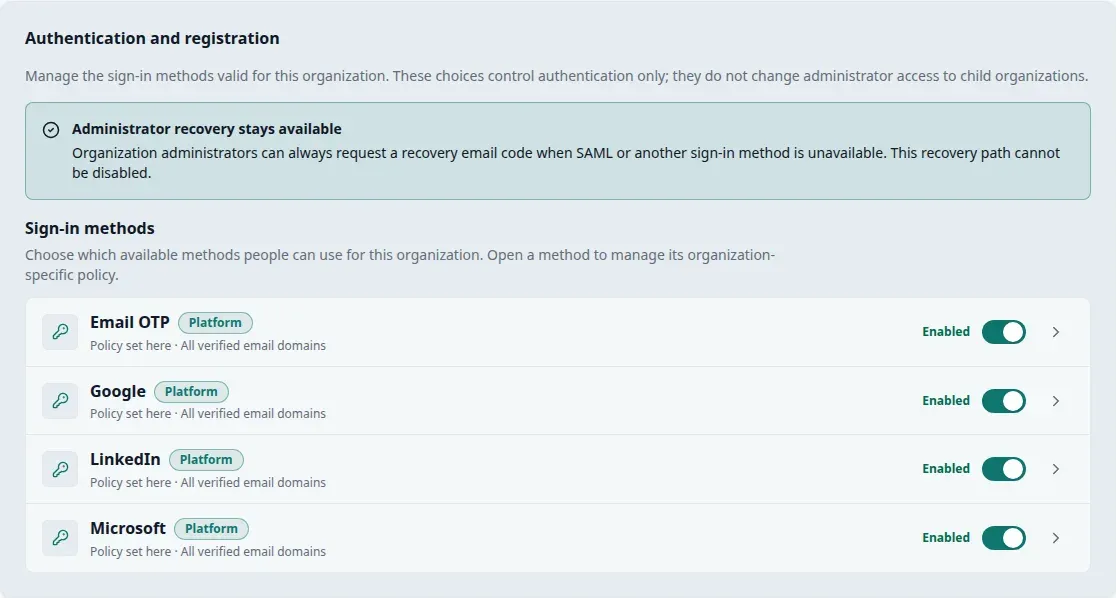
Under Sign-in methods, use the switch beside Email OTP, Google, LinkedIn or Microsoft. You are shown how many people and sessions the change affects before it is saved.
-
Select a method for its settings: Allowed verified-email domains (leave empty for any), Display order on the sign-in page, and Allow learner registration, which lets people on your email registration domains create an account with it.
A method marked Inherited from an organization above is switched on or off as that organization chose until you change it here. Its allowed domains are always your own: domains an organization above set for itself never limit who signs in to yours.
Use your own Google, Microsoft or LinkedIn app
In the method’s settings, under Sign-in app, choose Override for this organization. Register the Redirect URI to register in the app in your app, enter its Client ID (for Microsoft, the Application (client) ID and Directory (tenant) ID) and Client secret, and choose Save Google app (or Microsoft, or LinkedIn). People then see your app on the consent screen; with Microsoft, only accounts in your tenant can use it. Reset to inherited undoes it.
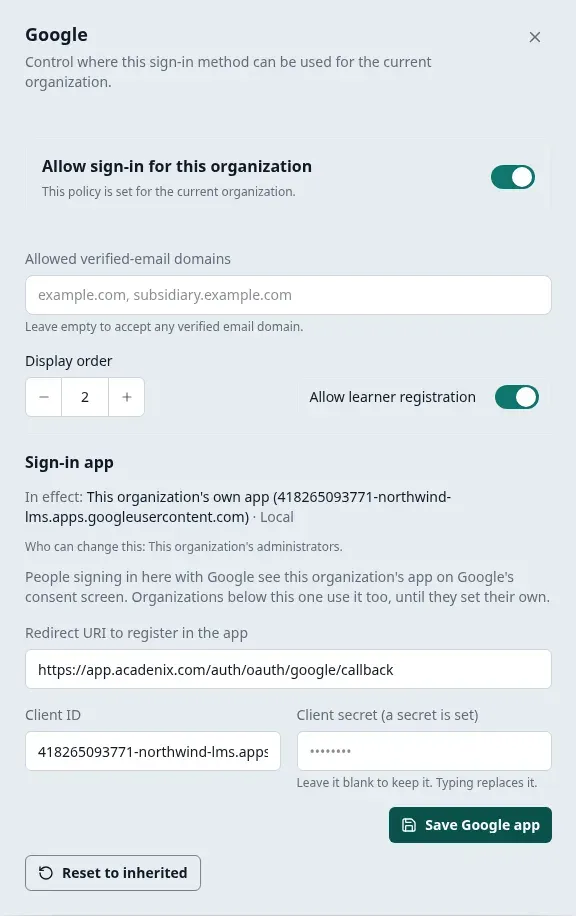
Nobody has to link their account again. LinkedIn gives each person a different ID in every app, so the first time someone signs in through your LinkedIn app, Acadenix links it to their account when LinkedIn’s verified email matches, keeps their earlier link, and records Sign-in method linked in the Activity report. Nobody is emailed. Google and Microsoft give the same ID in every app, so they carry on as before.
Set up SAML single sign-on
SAML needs your organization’s own Gold licence. Without it, Add identity provider tells you an upgrade is required. There are step-by-step guides for the common providers: Set up single sign-on with Microsoft Entra ID (Azure), Set up single sign-on with Okta and Set up single sign-on with Google Workspace.
-
Under Identity provider connections, choose Add identity provider, enter a Connection name and choose Create SAML connection.
-
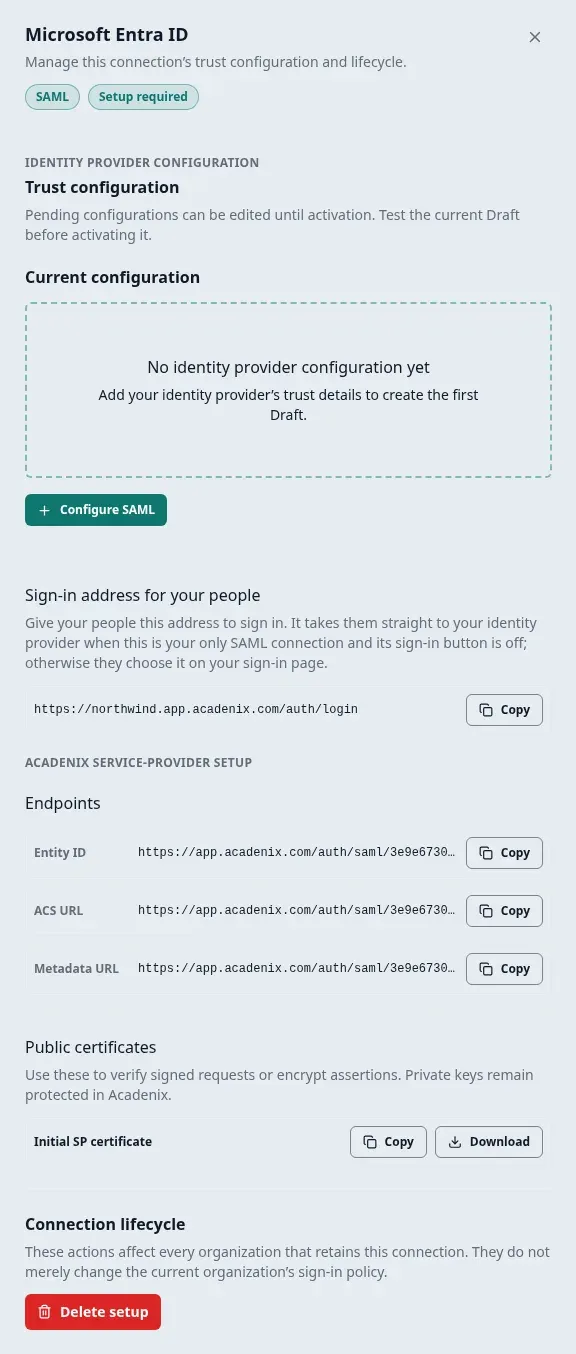
Open the connection and give your identity provider the Entity ID, ACS URL or Metadata URL it shows.
-
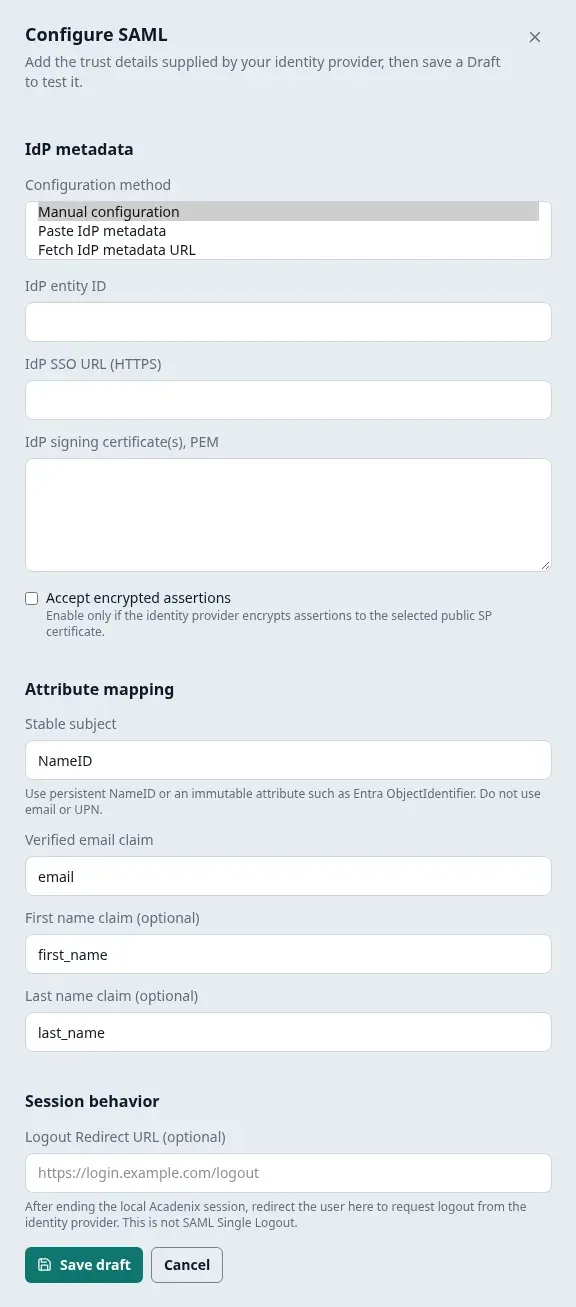
Choose Configure SAML. First choose the Configuration method: Fetch IdP metadata URL or Paste IdP metadata. The form opens on Manual configuration, whose fields you fill in only when you enter the details by hand. Then set the Attribute mapping to the claim names your provider sends, and choose Save draft.
-
Choose Test configuration and sign in at your provider. When it passes, choose Activate configuration.
-
Switch the connection on under Sign-in methods. If it’s your only SAML connection, your sign-in page now takes people straight to your identity provider. Other sign-in methods that are on are the fallback: someone your provider turns away, or who goes back, sees the sign-in page with every choice. To show the connection as a button under Enterprise identity providers instead, select it and switch on Display Sign On with SAML button on login screen.
-
Give your people the Sign-in address for your people shown on the connection, with its Copy button. It is your organization’s own sign-in page, at its own address.
Good to know
- Administrator recovery stays available whatever you choose (see Recover administrator access).
- Allow learner JIT provisioning on a SAML connection is on unless you switch it off. It gives someone without an account a learner account the first time they sign in, only if their address is at your Email registration domains.
- Signing out lands on your sign-in page rather than going back to your identity provider, so it doesn’t sign you straight back in.
- A change can sign people out whose sessions it no longer allows.
- To change a live SAML setup, choose Create configuration update. The current one keeps working until you activate the new one.
- Allow descendant organizations to authenticate using this organization, lower on the tab, lets people of the organizations beneath yours sign in on your sign-in page. They land in their own organization.
- SSO email conflict beside someone on Users means your identity provider sent an address another account already uses. Correct it at the provider.
If this didn’t help
Ask Nix to log a support ticket, or open Support under Need help?.
Copyright © 2026 Acadenix.com