
Work through a course
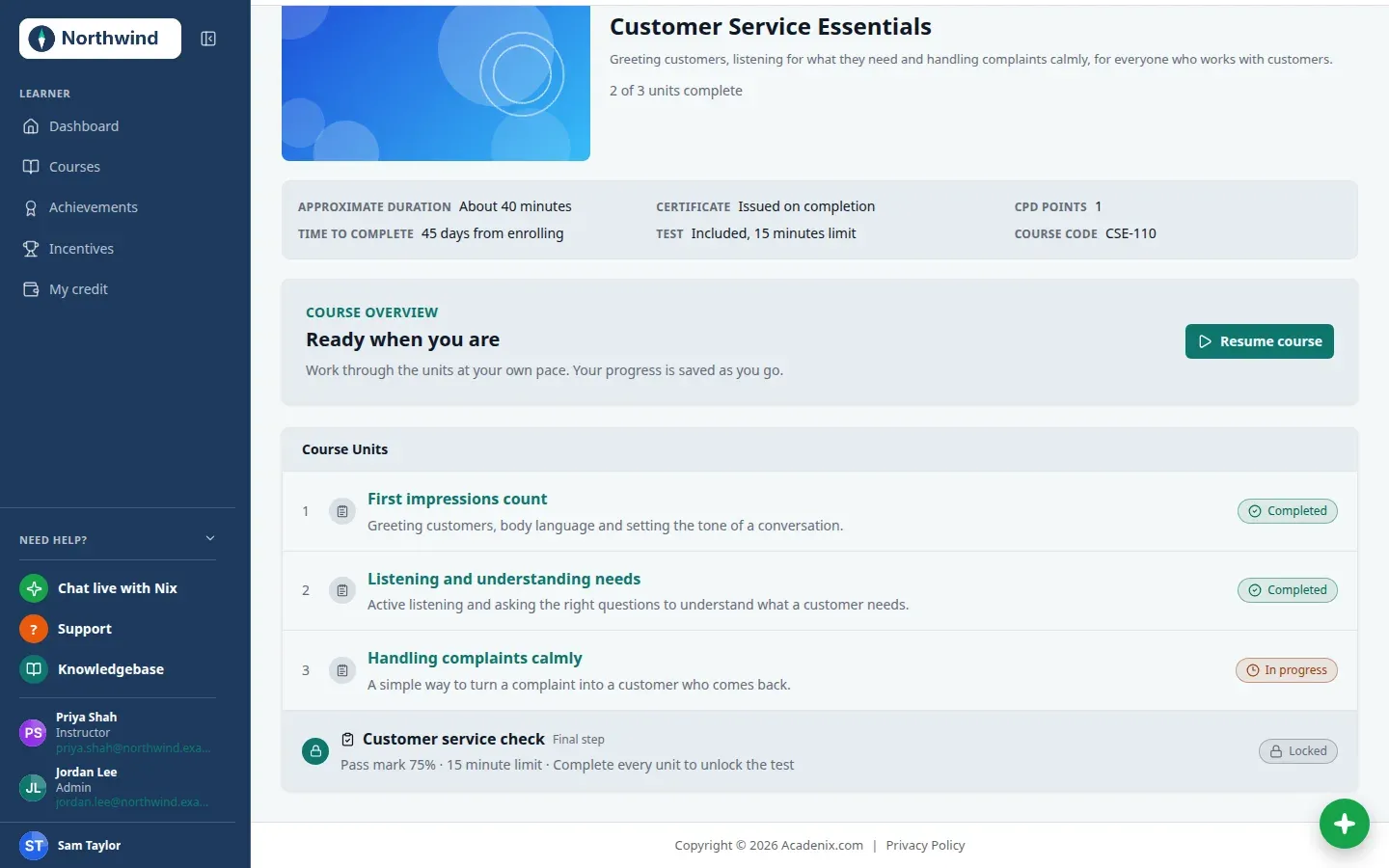
Open a course from Courses with Launch Course. The course page shows what the course asks of you, such as Approximate duration, Time to complete and Test, and lists its units under Course Units.
Steps
-
Choose Start course, or Resume course to carry on where you left off. You can also choose any unit in the list.
-
Work through the unit:
-
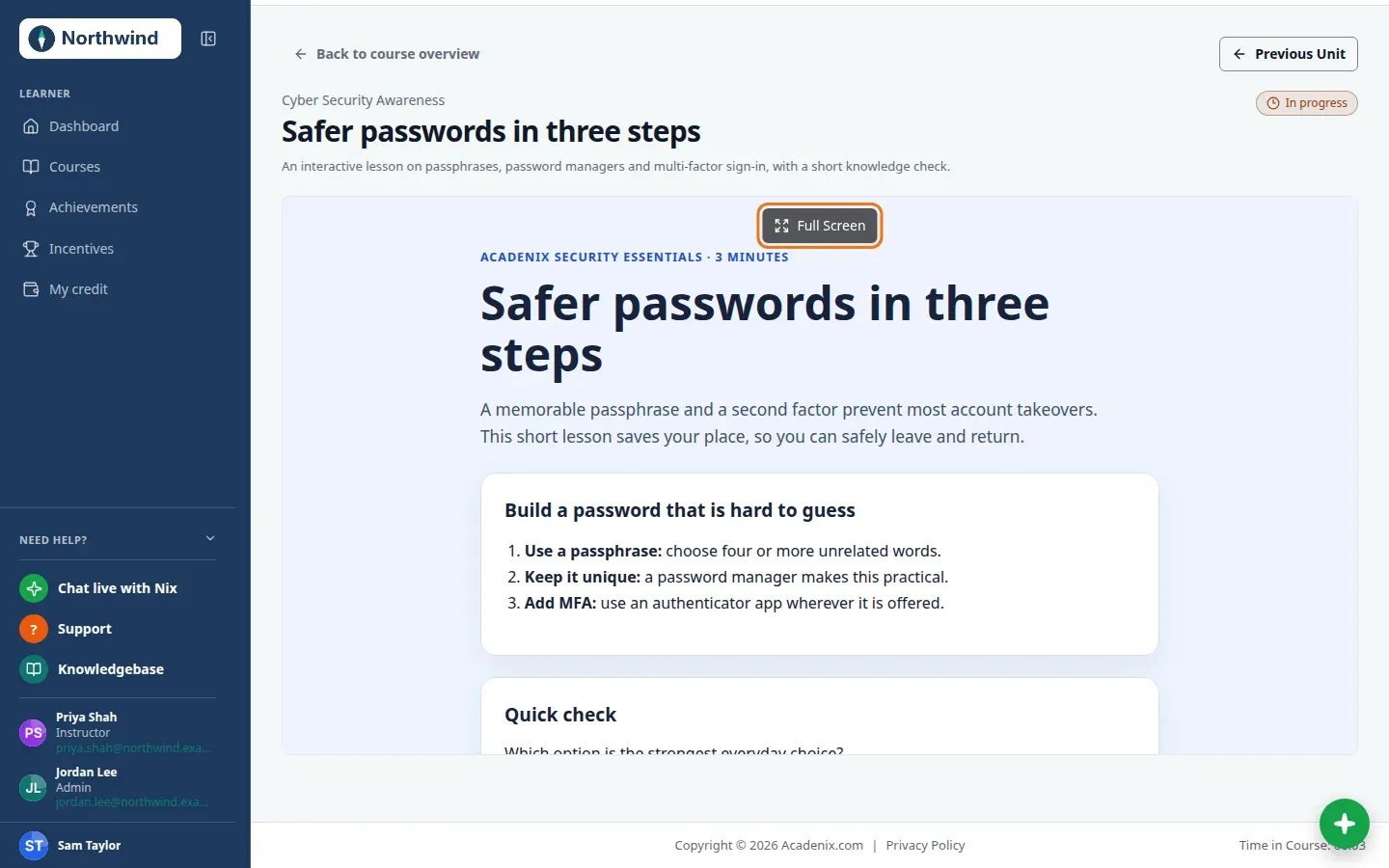
An interactive unit runs in the player and saves your progress as you go. Full Screen, at the top centre, gives it the whole screen; press Esc to come back.
-
For a PDF, instructions or web content, read it, then choose Mark complete.
-
For a video, watch it, then choose Mark complete. It turns on once you’ve watched 90% of the video; skipping ahead doesn’t count, and the button says how much is left. If the video has captions, turn them on with the player’s captions button.
-
-
When a unit is complete, choose Continue to the next unit, or use Next Unit and Previous Unit. Back to course overview returns to the list.
-
When every unit is complete, take the course’s test if it has one. Otherwise the course is complete.
Good to know
- Time in Course, at the bottom of the screen, counts only while the unit is on screen. It pauses when you switch tabs or minimise the window, and what it shows is what’s recorded.
- A video picks up where you stopped. Once completed, it plays from the start and nothing you watch then is recorded.
- You can close a course and come back later. Use one tab: opening the course in a second tab takes over from the first.
- A unit marked Not passed has a Take it again button, which starts that unit afresh. Your earlier attempt is kept.
- Some courses need their units done in order. A unit marked Locked opens once you finish the ones before it; choosing it offers to take you to the one to do next.
- A completion is final. You can open a finished course or unit to review it, but nothing you do then changes your result. Updated on a unit means it changed after you finished it; your completion still stands.
- A Test run banner at the top means nothing you do is saved. It shows when an administrator or instructor tries a course out, takes one outside their home organization, or is impersonating someone.
- If a message says the concurrent licensing limit is reached, too many people in your organization are learning at once. Try again shortly.
- If your progress couldn’t be saved, keep the page open: it keeps trying.
- Course content is for reading here, not copying: right-click, selecting, dragging, saving and printing are switched off over it, inside interactive units and web content as well, and a PDF has no download button. Answer boxes work as usual.
- The course content is shown only in your own open course. A link to it copied anywhere else stops working soon after you leave the course, open it in another tab, or sign out. If a course looks broken after you’ve been away for a while, reload the page. If it still fails, reload the page.
If this didn’t help
Ask Nix to log a support ticket, or open Support under Need help?.
Copyright © 2026 Acadenix.com